
Searching Tumbite: restaurants, dishes, and cuisines
Tap the search bar on the home screen and type what you’re craving. As you type, Tumbite searches your city and shows matching restaurants and dishes, open ones first.
How it works
The home search bar opens its own screen, like the big delivery apps. Type at least two letters: a restaurant name, a dish (“pizza”, “sushi”), or a cuisine (“Cuban”).
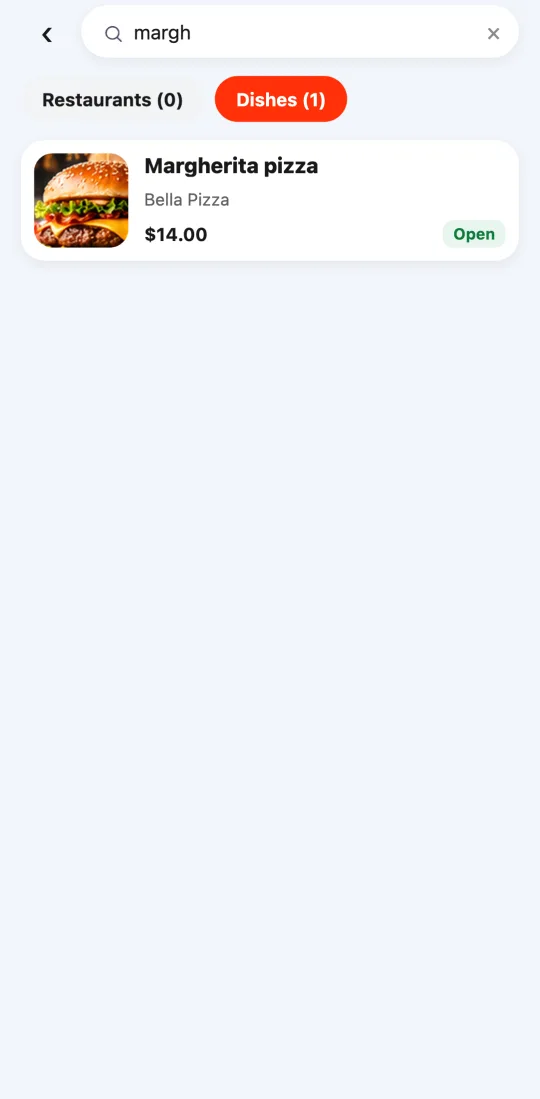
Results arrive on their own as you type, in two tabs: “Restaurants” and “Dishes”. Each tab shows how many it found.
Under “Dishes” you see the dish name, its price, and the restaurant that makes it. Tapping a result opens that restaurant with its full menu.
Accents and capital letters don’t matter: “sandwich” finds “Sándwich”. Only approved restaurants open to the public in your city show up, and the ones open right now come first.
If we’re not in your area yet, the search tells you so instead of showing an empty list.
Steps
- On the home screen, tap the “What are you craving today?” bar.
- Type at least two letters of what you’re looking for.
- Switch between “Restaurants” and “Dishes” with the tabs.
- Tap a result to open the restaurant and order.
This guide answers
- How do I search for a dish on Tumbite?
- Why doesn’t the search find anything?
- Can I search by type of food?