
Receiving orders and the alarm
It rings loud until someone accepts. No order gets forgotten at rush hour.
Steps
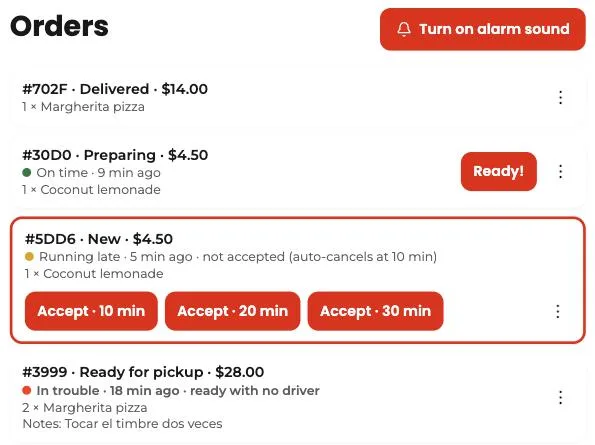
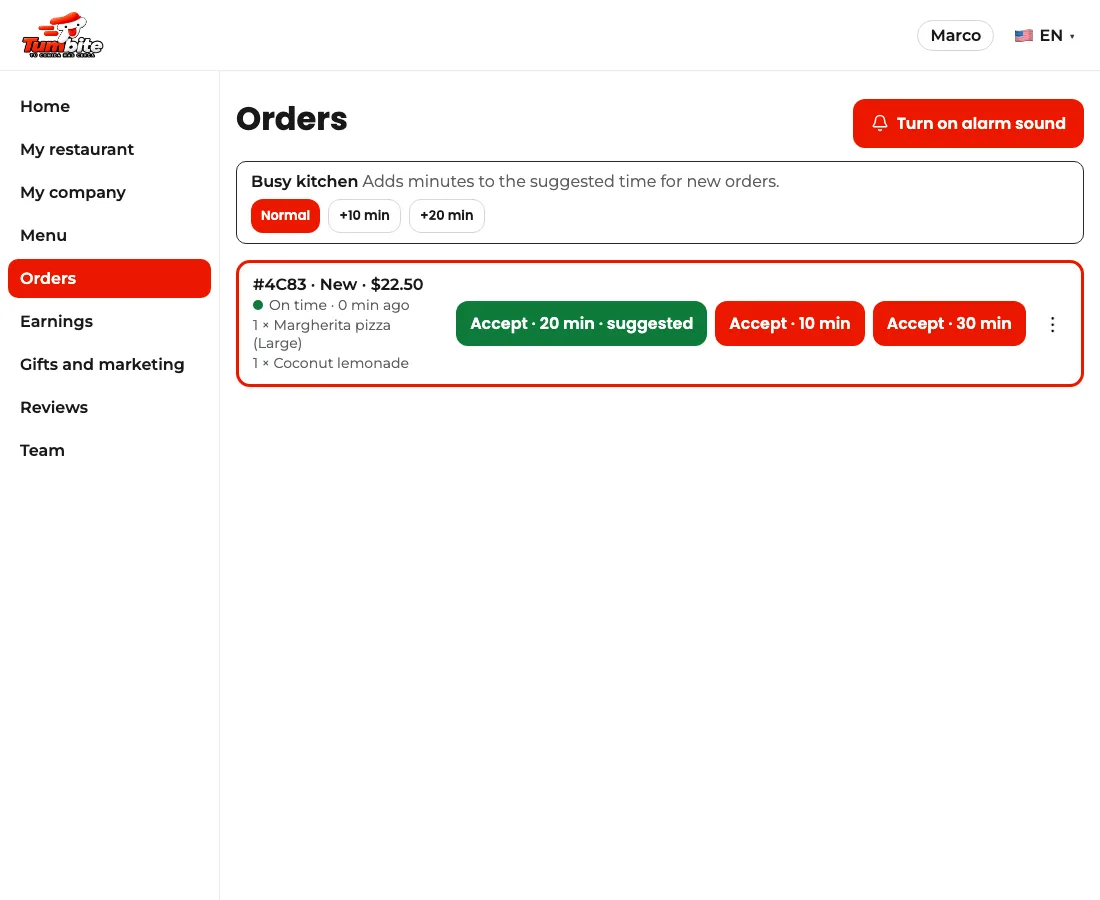
- In “Orders,” tap “Turn on alarm” once (the browser asks permission for sound).
- When a paid order comes in, it rings until you accept. Choose the prep time in minutes.
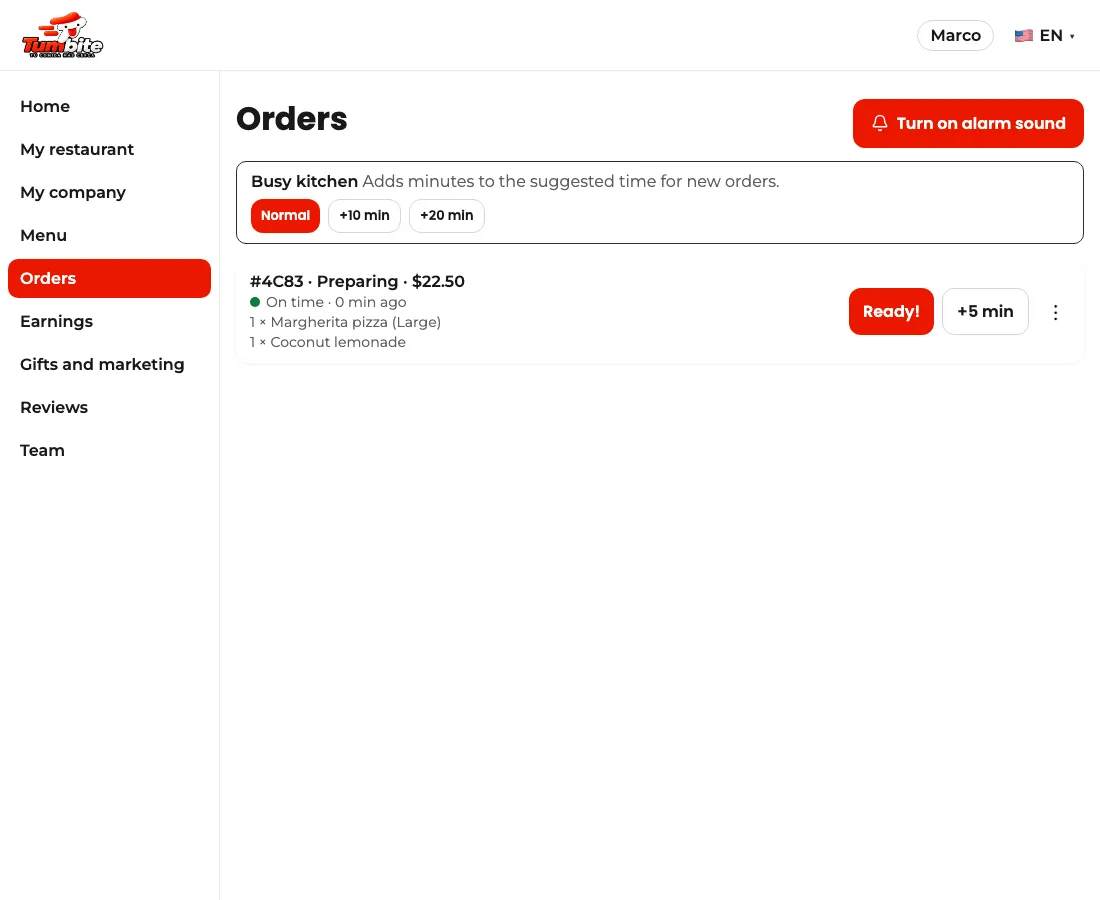
- Prepare the food and tap “Ready” when it’s done: that’s when we find the closest driver.
- Every order has its traffic light: green is on time, yellow is running late, and red needs attention now. Next to it you see how long ago it came in and why it’s late.
- If nobody accepts an order, we alert you on your phone at 1 and 3 minutes. At 6 we cancel it and refund the customer: an order canceled in time beats a customer left waiting.
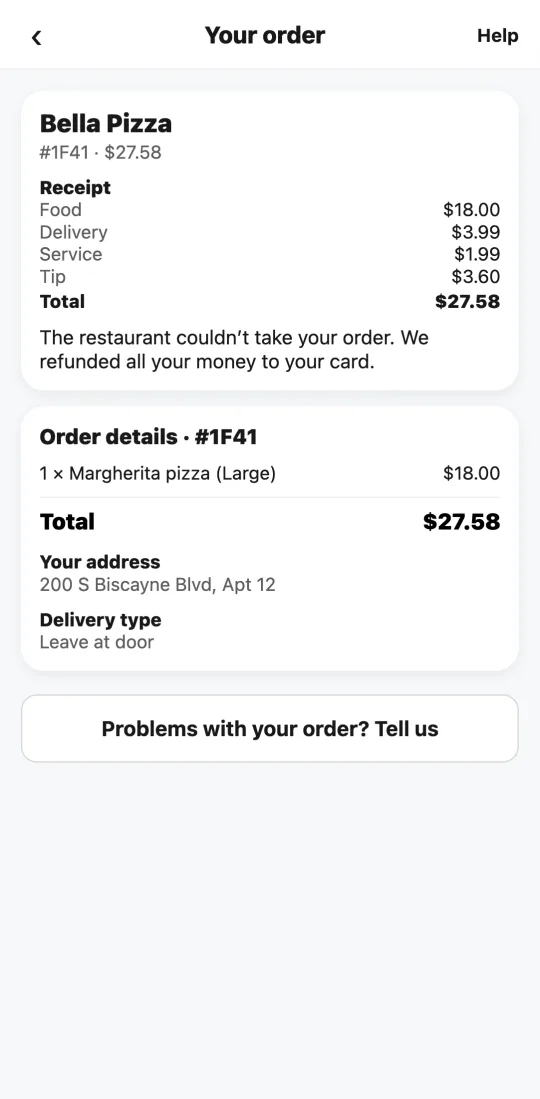
- If you can’t take an order, open the three dots and choose “Reject order.” The customer gets a full refund.
- You can also use the Tumbite restaurant app on a tablet or phone: same alarm, same orders.
This guide answers
- How do I accept an order?
- How do I let the driver know the food is ready?
- How do I decline an order?