
The restaurant app: orders, timing, the pickup code, and your menu
From the counter phone or tablet: the alarm tells you about every new order, you accept it with its prep time, follow each one in the kitchen, show the code to the driver, and edit your menu, with your sales for today, the week, and the month.
How it works
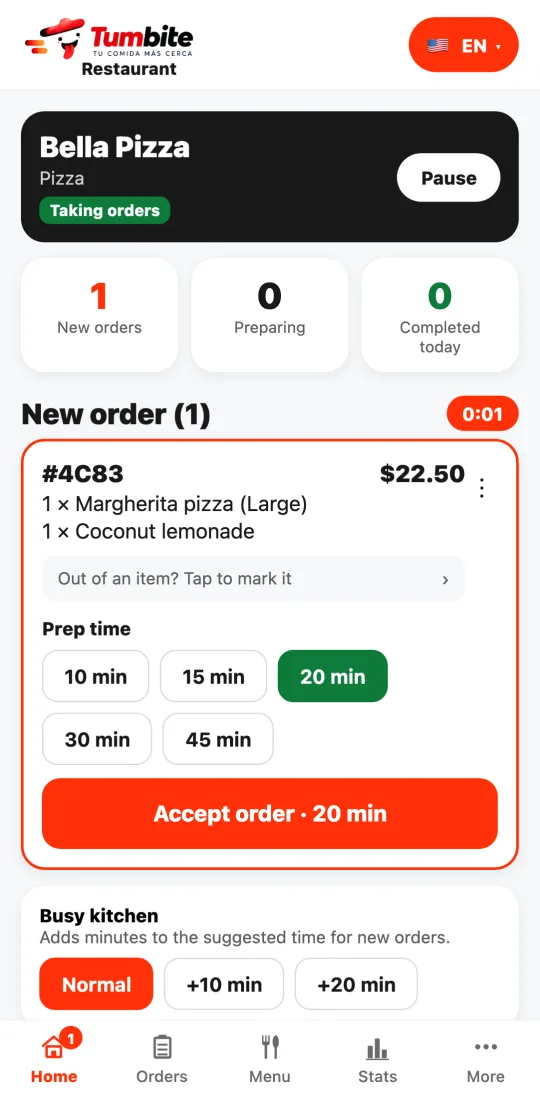
Home: at the top you see your restaurant and whether it’s taking orders (with the button to pause), plus three numbers: new orders, preparing, and completed today. Each new order arrives with an alarm, a timer showing how long it has been waiting, what was ordered, and the price.
Accept: choose the prep time (the suggested one is marked in green) and tap “Accept order.” If you’re out of an item, tap it under “Out of an item?” and we ask the customer what they’d like to do.
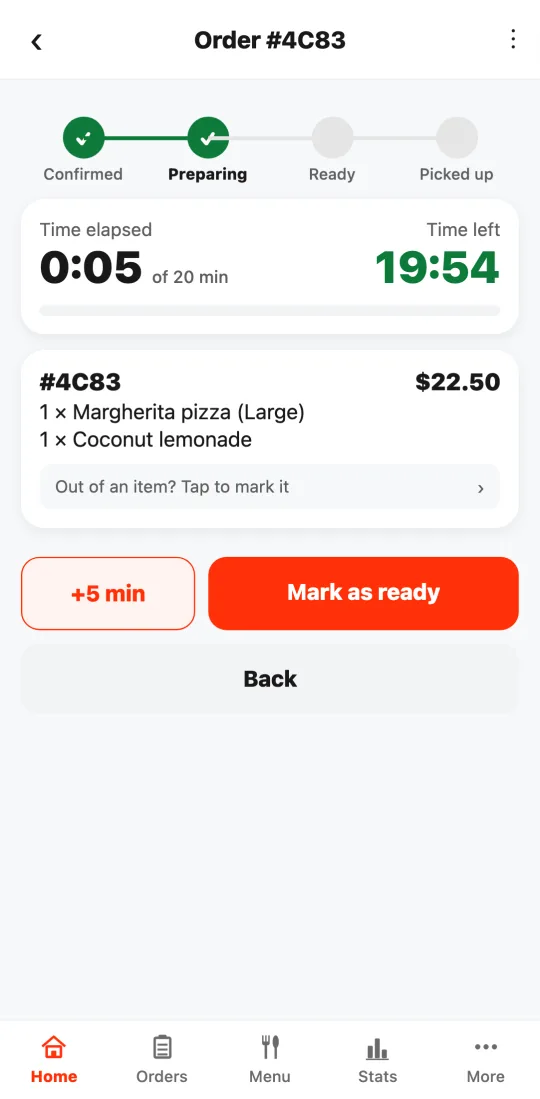
Preparing: when you open the order you see the steps (confirmed, preparing, ready, picked up), the time elapsed, and the time left. Tap “+5 min” for more time and “Mark as ready” when it’s good to go.
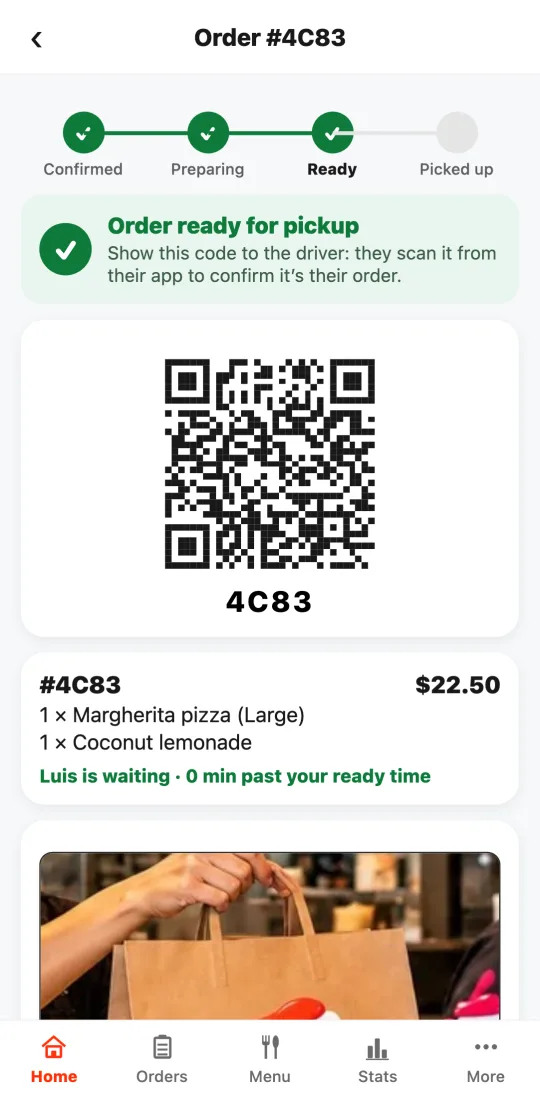
Ready for pickup: a large code with the order number appears. The driver scans it from their app, takes a photo of the bag, and you see it on your screen to confirm it’s your order.
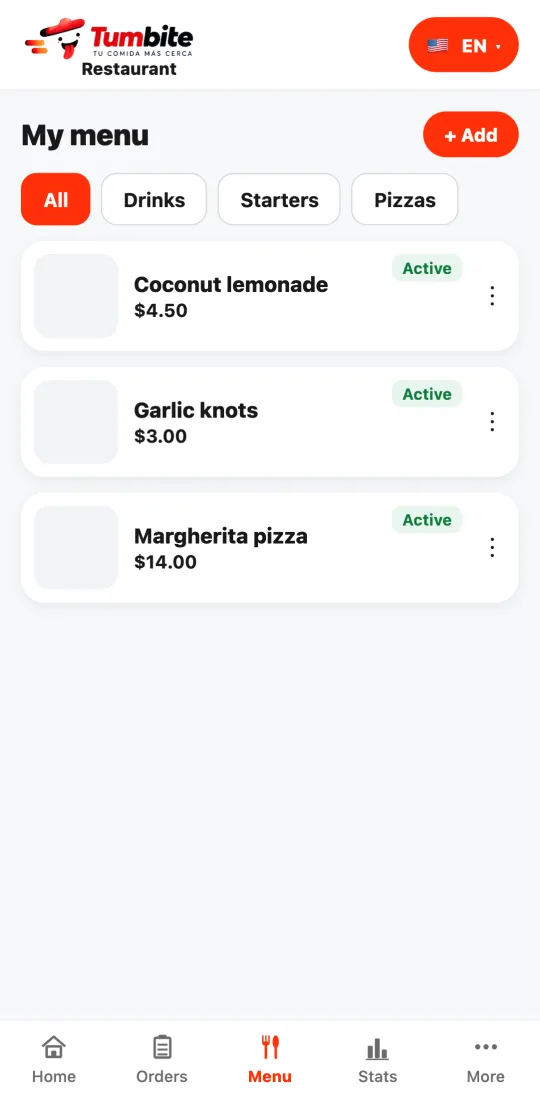
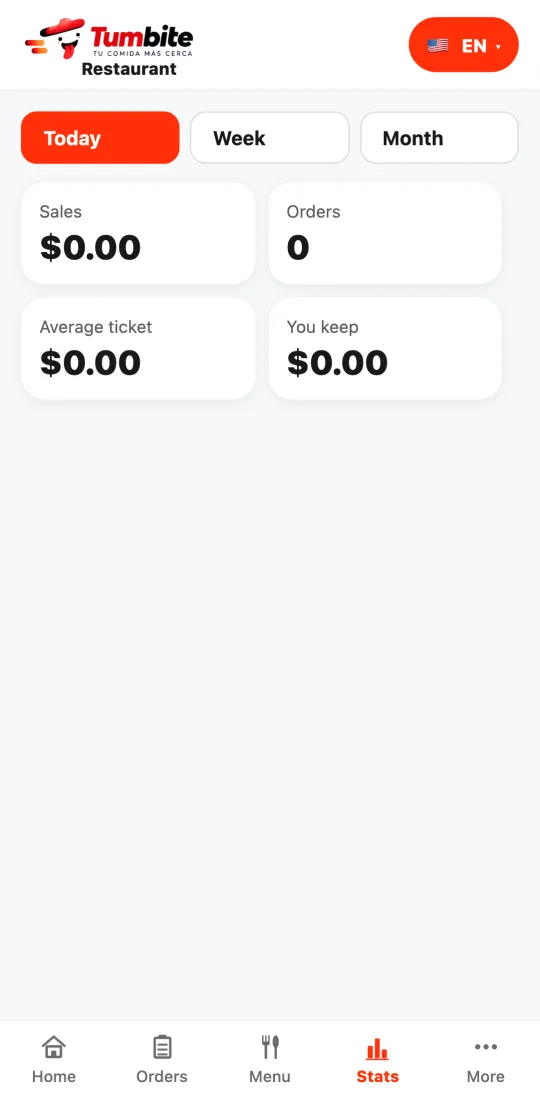
Orders: the ones in progress and those from the last 24 hours, by group. My menu: your dishes with photo, price, and whether they’re active or sold out; tap “Add” to create one and use the three dots to edit, mark sold out, or delete. Stats: sales, orders, average ticket, and what you keep, for today, the week, and the month.
On a tablet, new orders stay on the left and the ones in the kitchen on the right, with large buttons you can use with busy hands.
Steps
- Sign in to the restaurant app with the same email and password you use for the dashboard.
- When the alarm rings, review the order, choose the time, and tap “Accept order.”
- When it’s ready, open the order and tap “Mark as ready.”
- Show the code to the driver and confirm the photo of the bag.
- Use “Menu” to change prices or mark a dish sold out, and “Stats” to see your sales.
Sizes and extras for each dish are still edited in the web dashboard.
This guide answers
- How do I accept an order from my phone?
- How do I mark a dish as sold out?
- Where can I see how much I sold today?