
Photo at pickup, delivery at the door
Every order leaves two photos: the closed order as it leaves the restaurant, confirmed by the restaurant, and the delivery at the door.
How it works
That way no one walks off with a bag without a trace, and no one marks an order “delivered” from somewhere else.
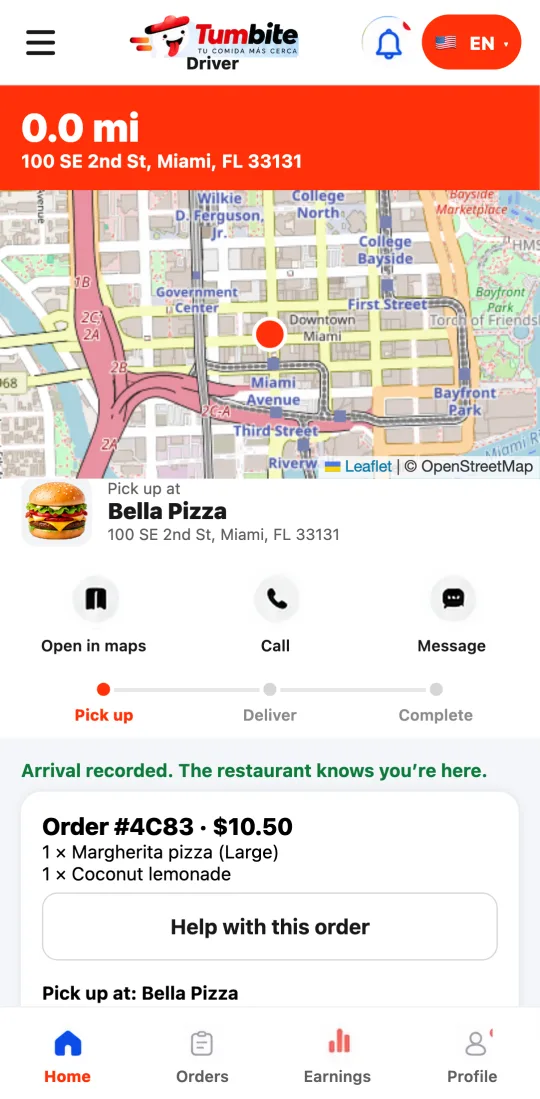
At the restaurant, the driver takes a photo of the closed bag with the seal or receipt showing. The app only accepts it at the restaurant.
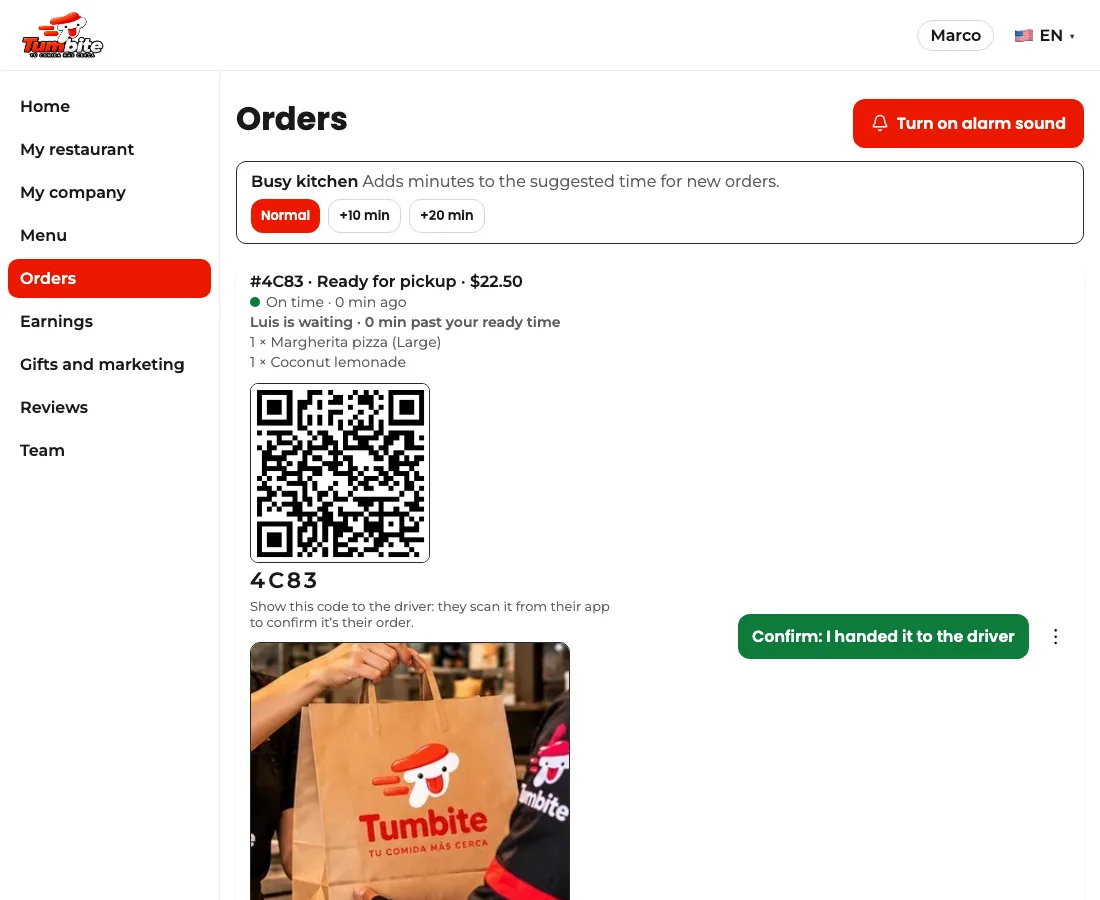
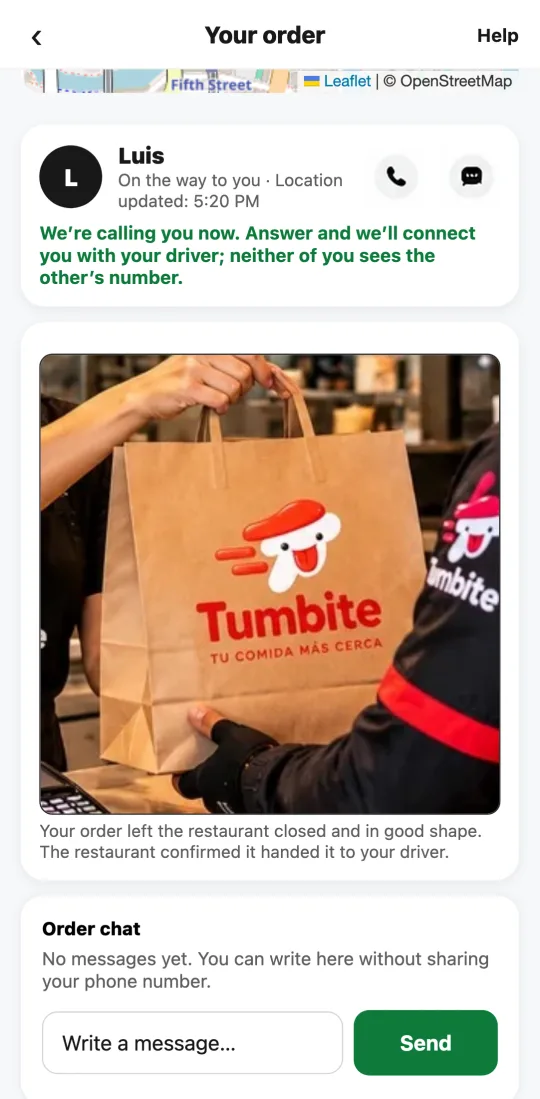
The driver also scans the QR code on the restaurant’s screen, which confirms it’s the right order; with the code and the photo, the order goes out on its own. If they didn’t scan, the restaurant sees the photo on its screen, checks that it’s their order, and taps “Confirm: I handed it to the driver.” Only then does the order go out: everyone knows who has it, the driver sees the route, and the customer sees the photo of their closed order with the estimated time.
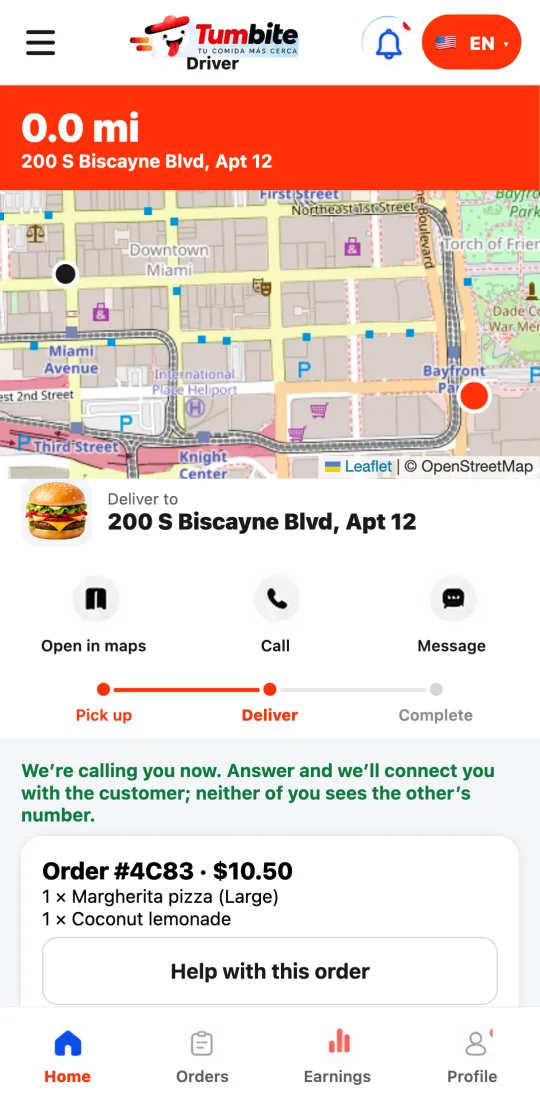
On the way, the green “Directions” button guides the driver. At the door (within 200 meters of the address, confirmed by GPS with two precise readings), that button goes away and “Take the delivery photo” appears. It can’t be delivered from far away. If you chose “hand it to me,” the driver taps “Handed to the customer” and no photo is needed.
The delivery photo shows no faces: the food is left at the door or in the customer’s hands, and the photo is taken from the side, showing the hands, the food, and the home’s entrance.
Only the customer, the restaurant, and the driver of that order can see the photos, plus our support team if there’s a claim.
Steps
- Driver: at the restaurant, tap “Take a photo of the order” and photograph the closed bag.
- Restaurant: look at the photo on your screen and tap “Confirm: I handed it to the driver.”
- Driver: follow “Directions” to the customer’s door.
- Driver: at the door, tap “Take the delivery photo.” No faces: from the side, with the hands, the food, and the entrance.
- Customer: sees the photo of the closed order when it leaves and the delivery photo when it arrives.
This guide answers
- Why does the driver take a photo of the order?
- How do I confirm I handed the order to the driver?
- Why can’t I mark the order delivered?
- Who can see the delivery photo?