
Your menu: items, prices, and photos
Every item in English and Spanish, with its price, category, and photo.
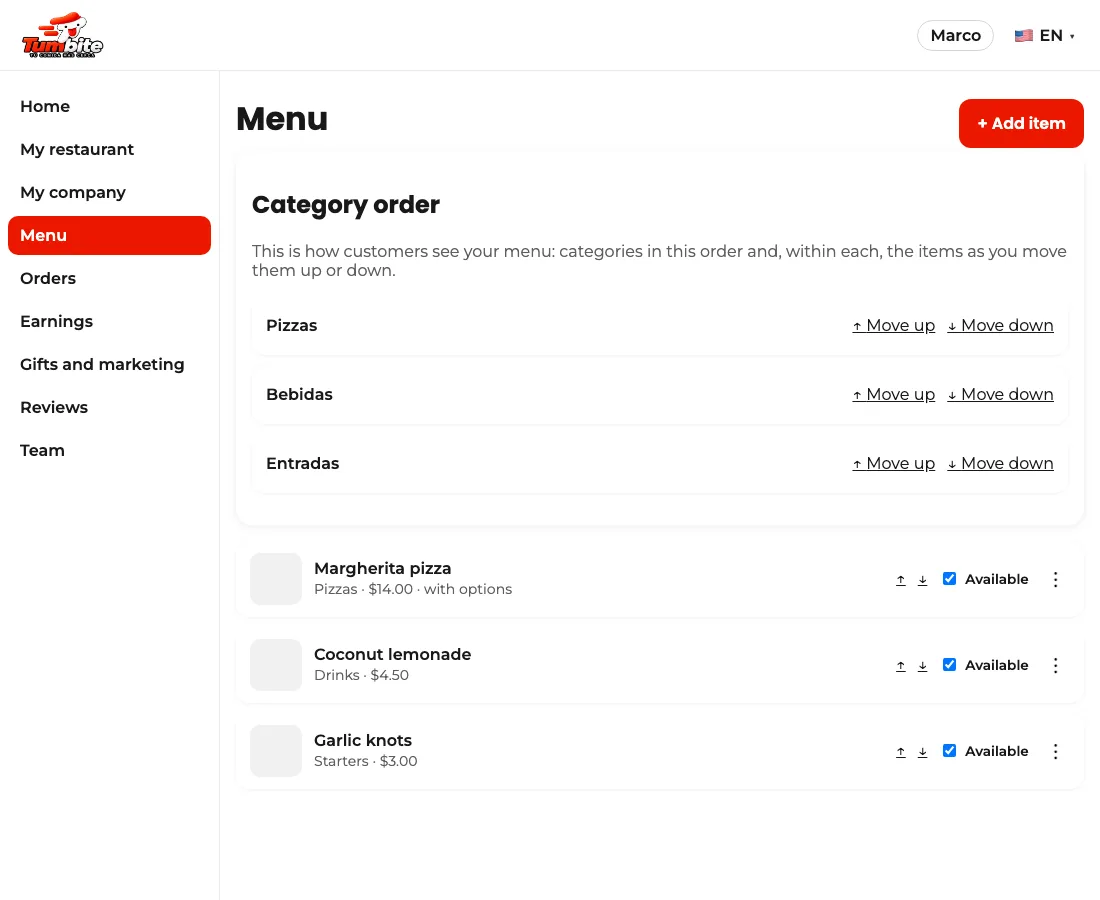
Steps
- In “Menu,” tap “Add item.”
- Write the name and description in English and Spanish. Customers see the language they chose.
- Set the category in English and Spanish (for example “Starters” and “Entradas”) to group the menu, and the price in the local currency of your restaurant’s city (in the cities where Tumbite operates; currencies without cents, like pesos, are written as whole numbers: 12000 is twelve thousand pesos).
- Upload the item photo. No photo yet? Add it later: the item is published either way.
- Save. What you type is saved as you go: if the window closes, it’s still there when you’re back.
This guide answers
- How do I add an item to my menu?
- How do I change a price or a photo?