
Upload your store catalog: grocery, pharmacy, liquor and more
If you run a grocery store, pharmacy, liquor store, hardware store or another shop, upload your products with a spreadsheet or one by one. They’re ready for launch day.
How it works
Divoox isn’t just food. In “Products (store)” you choose your business type: grocery, convenience, pharmacy, liquor, hardware, pets, beauty or another store. Each type appears in its own service in the app: Grocery, Pharmacy, Liquor or More.
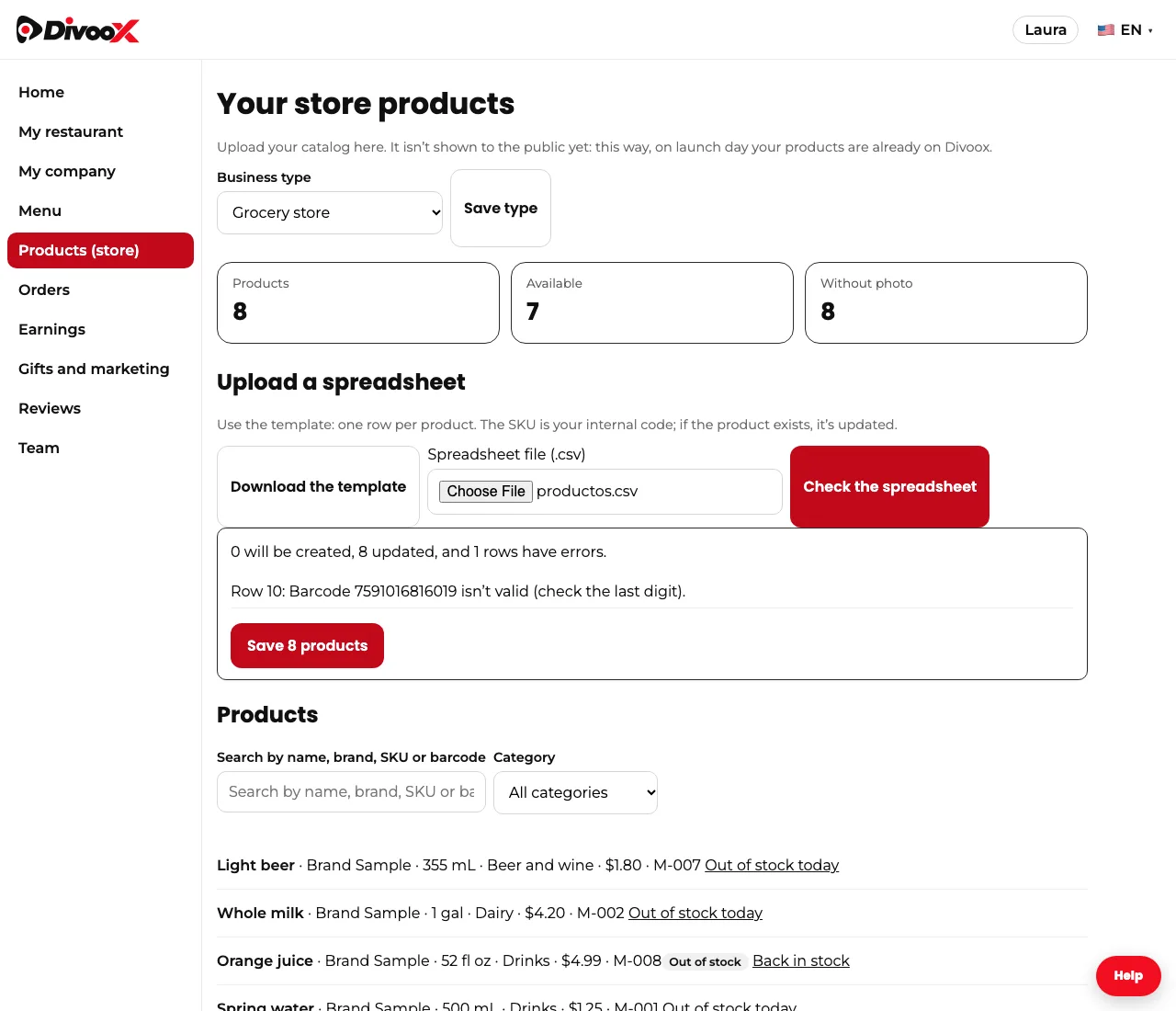
You can upload thousands of products at once with the spreadsheet. Download the template, fill one row per product (SKU, barcode, name, brand, size, category, price and stock) and upload it. Before saving, Divoox shows how many products will be created, how many updated, and which row has an error so you can fix it. If you upload the spreadsheet again, products update by SKU: they’re never duplicated.
Barcodes are checked with their check digit, so a mistyped number doesn’t slip through. When you add a product one at a time, type the barcode and tap “Fill in from the barcode”: we bring the name, brand, size and photo from Open Food Facts, an open product database, and you just check the price and save. You can sell by unit or by weight, and flag products with alcohol, tobacco or over-the-counter medicine: Divoox checks age at delivery. Prescription medicines can’t be sold yet.
A product is never deleted: if you run out, mark it out of stock for today and it comes back on its own tomorrow, or reactivate it whenever you want.
Your catalog isn’t shown to the public yet. Upload it now, and on the day we open stores in your city, your products are already there.
Steps
- In the dashboard, open “Products (store)” and choose your business type.
- Tap “Download the template” and fill one row per product.
- Upload the file and tap “Check the spreadsheet”.
- Fix any rows with errors and tap “Save”.
- To mark a product out of stock, tap “Out of stock today”; it comes back tomorrow.
This guide answers
- How do I upload my grocery store or pharmacy products?
- Which columns does the product spreadsheet have?
- What happens if I upload the spreadsheet again?
- Can I sell alcohol or medicine?