
Get started with Divoox Flex: a step-by-step guide for your company, your drivers and your customers
Divoox Flex is the technology for your company to deliver its packages with its own drivers and vehicles. This guide takes you from sign-up to the first delivery, with the real screens.
How it works
Who uses what: your company works in the Divoox Flex web dashboard (it also opens in the Divoox app, under Delivery → “Logistics block”). Your drivers use the Divoox Driver app, under “My route (packages)”. Recipients don’t need to install anything: they get alerts with a link to follow the package; if they want, they use the Divoox app under “My packages”.
Divoox doesn’t provide vehicles or drivers: you do. It works the same with trucks, cars or motorcycles (by motorcycle, envelopes and small boxes). Each vehicle has its capacity and the dashboard warns you if a route won’t fit.
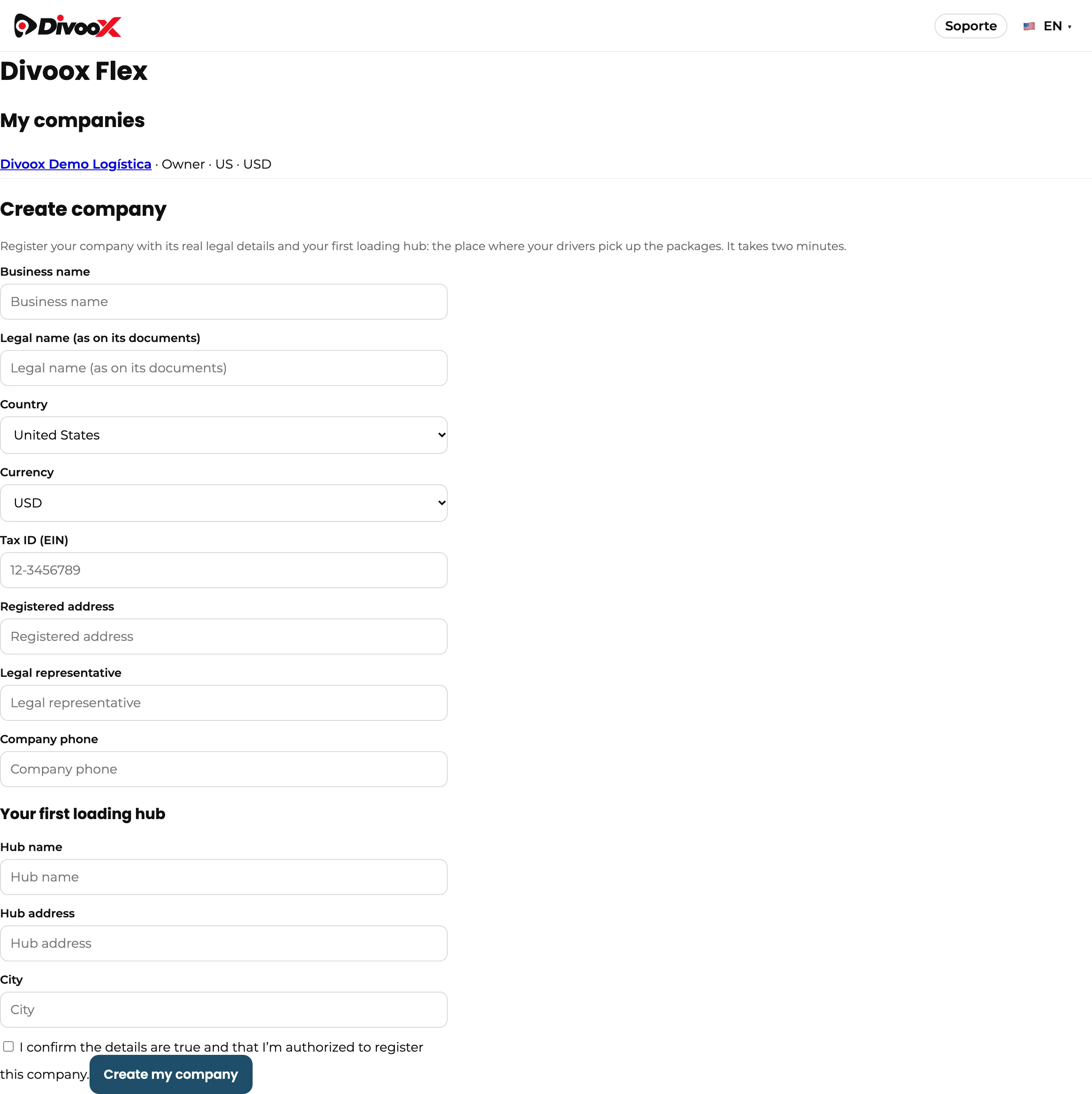
1. Register your company with its real legal details (your country’s tax ID, registered address, legal representative and phone) and your first loading hub: the place where your drivers pick up the packages.
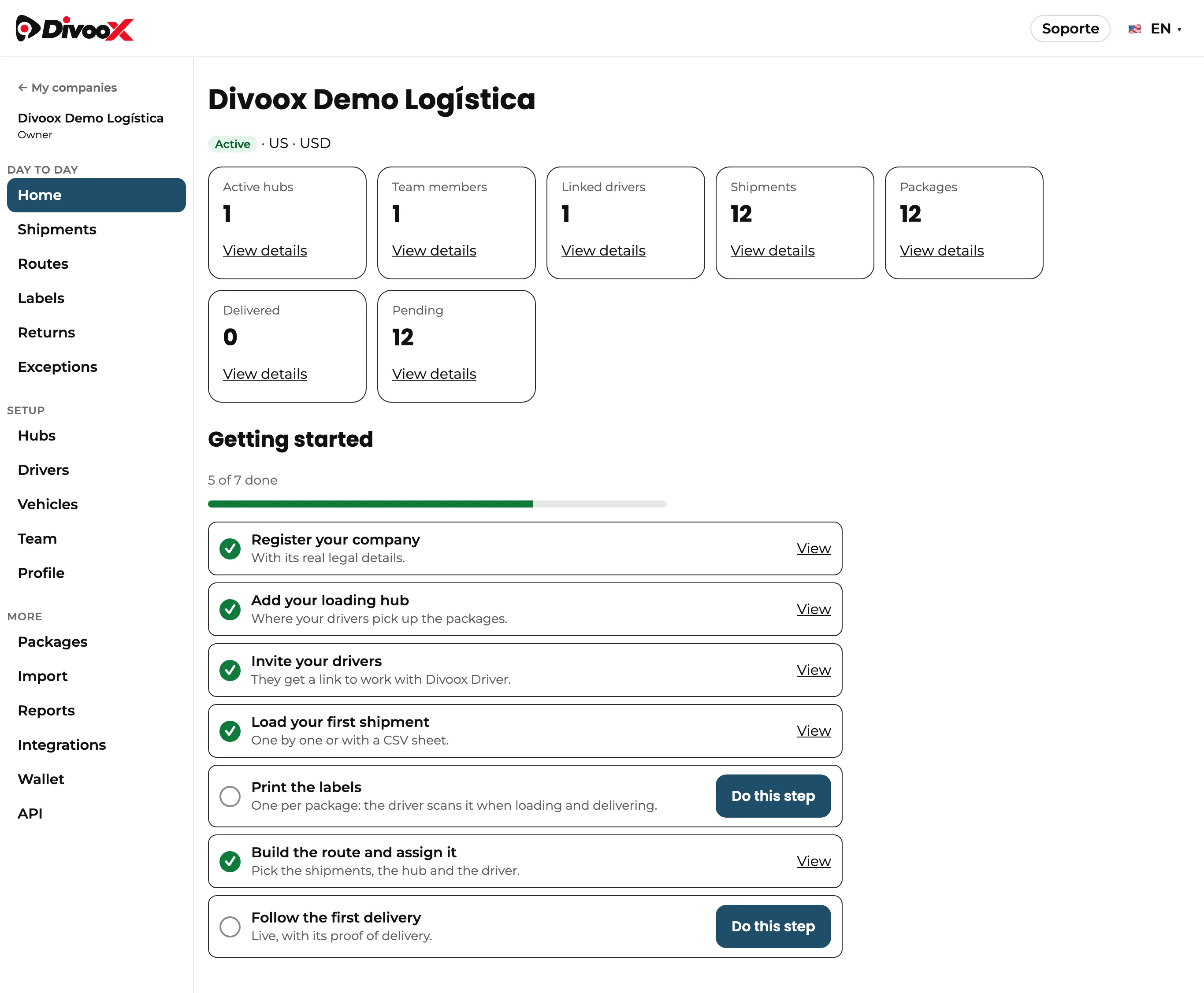
2. On the home screen you’ll see “Getting started”: steps check off on their own as you go, and each one has its button.
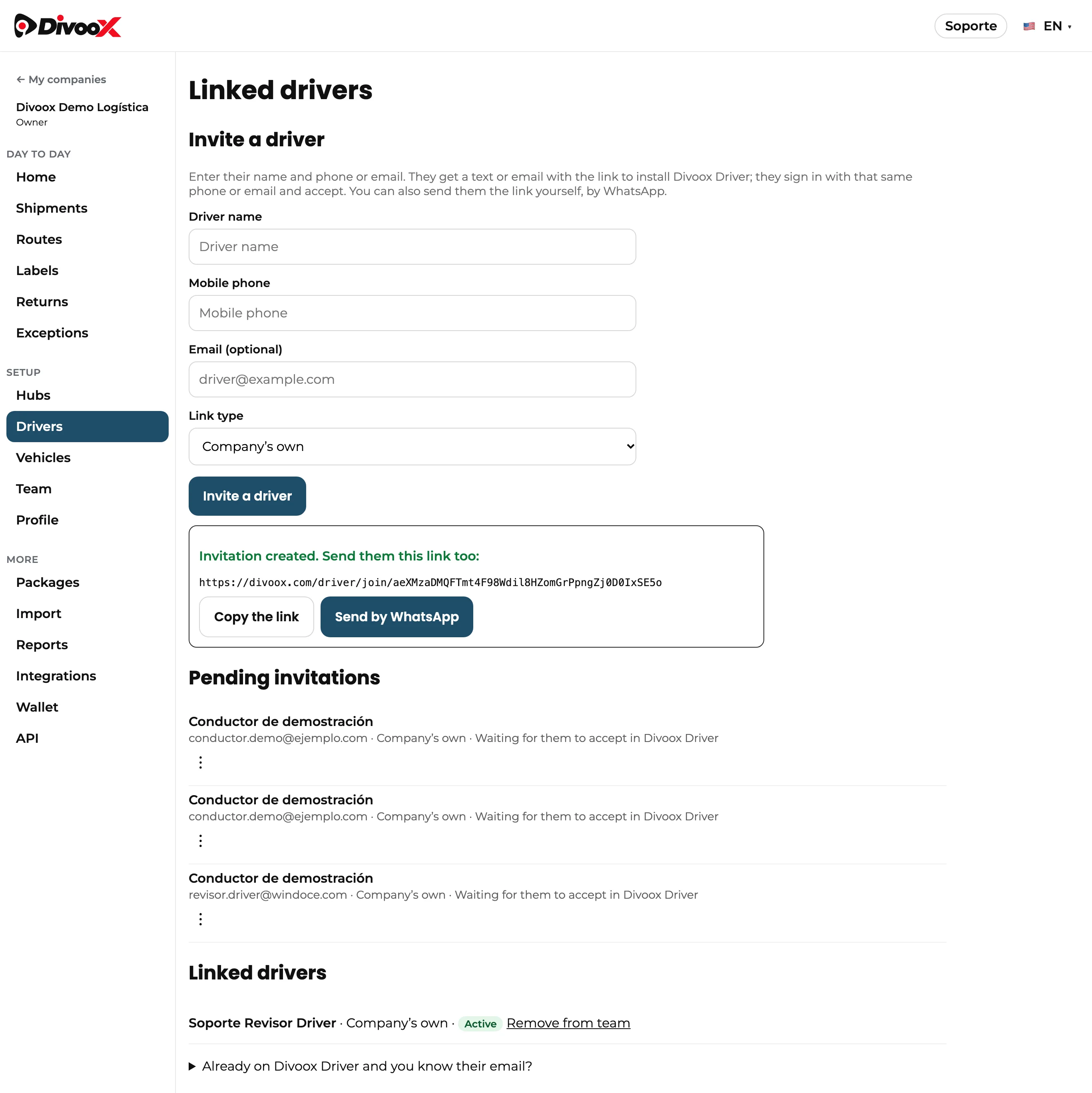
3. Invite your drivers in “Drivers” with their name and phone or email. They get a text or email with the link, and you see it too so you can send it by WhatsApp. They install Divoox Driver, sign in with that same phone or email and accept.
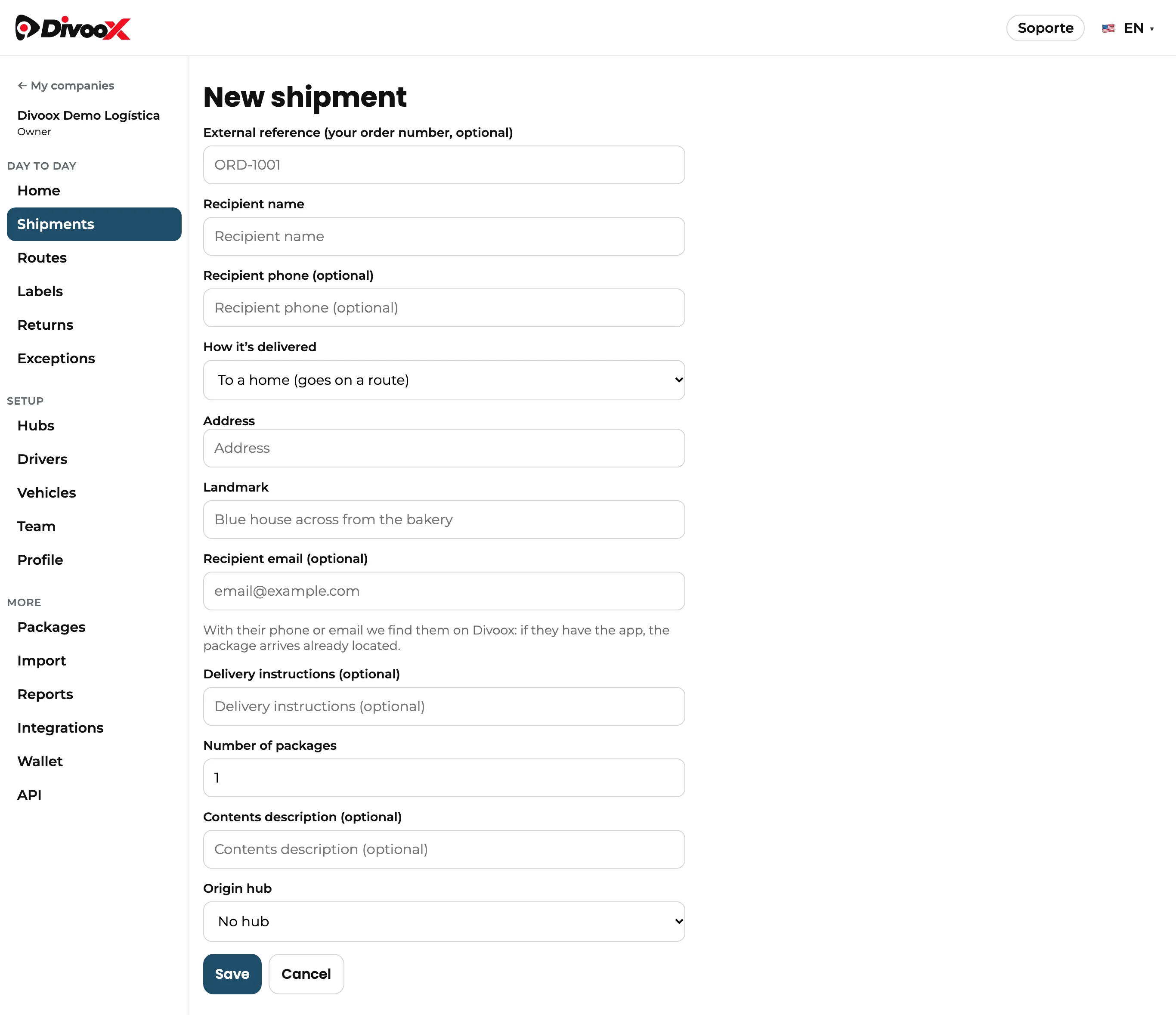
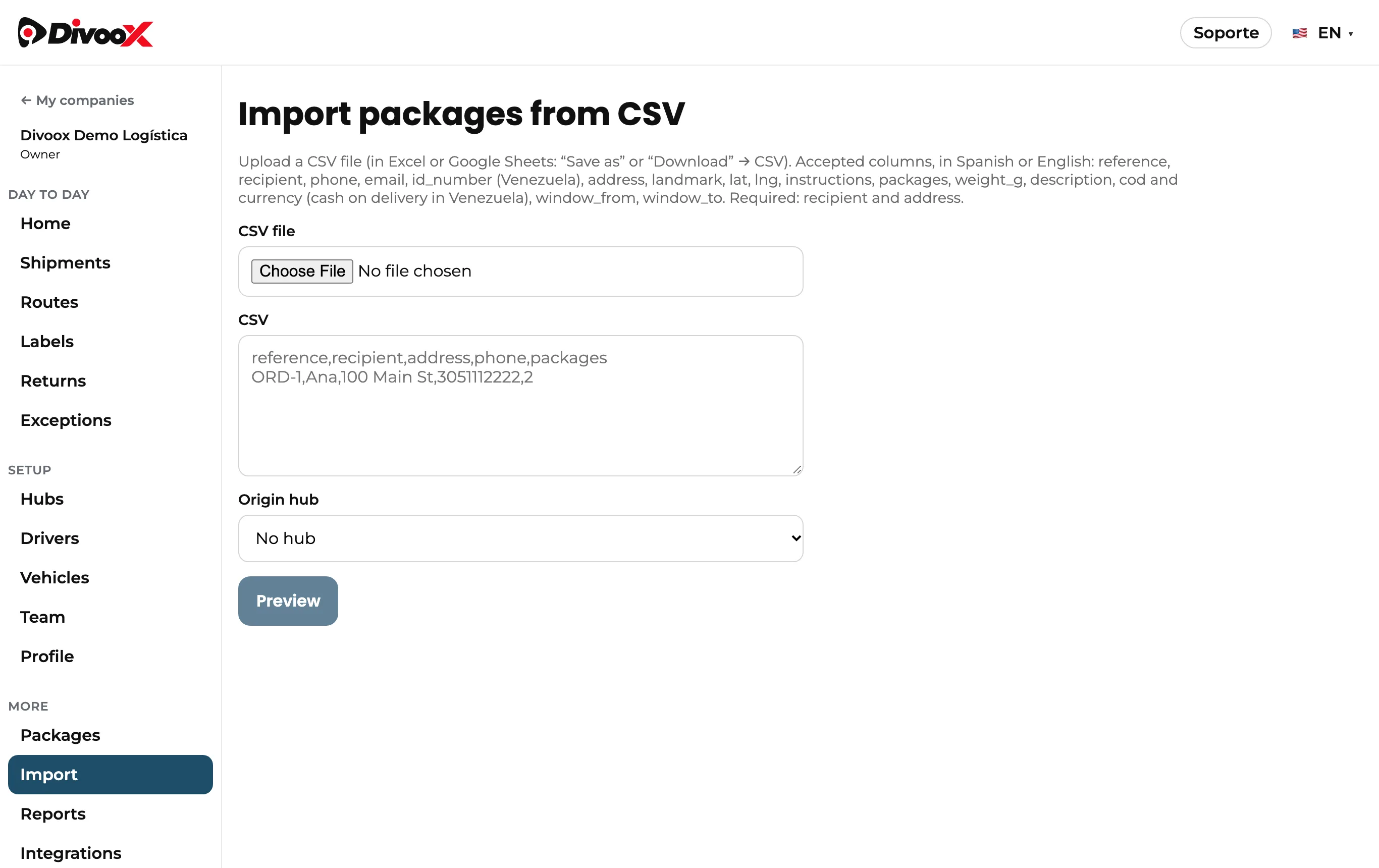
4. Load your shipments in “Shipments”: one by one or hundreds at once with a CSV sheet (saved from Excel or Google Sheets).
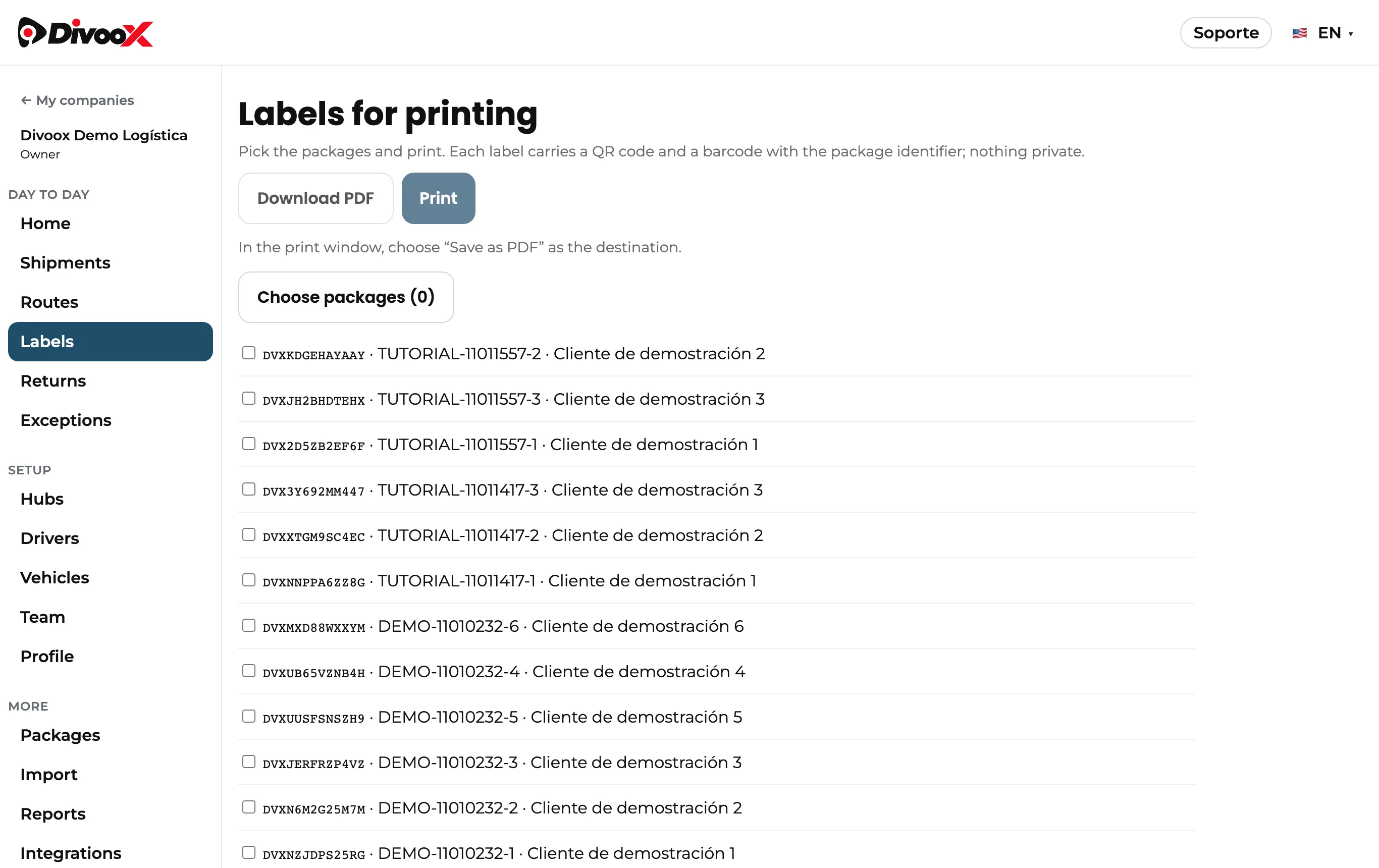
5. Print the labels in “Labels” and stick one on each package. Your driver scans them when loading and delivering.
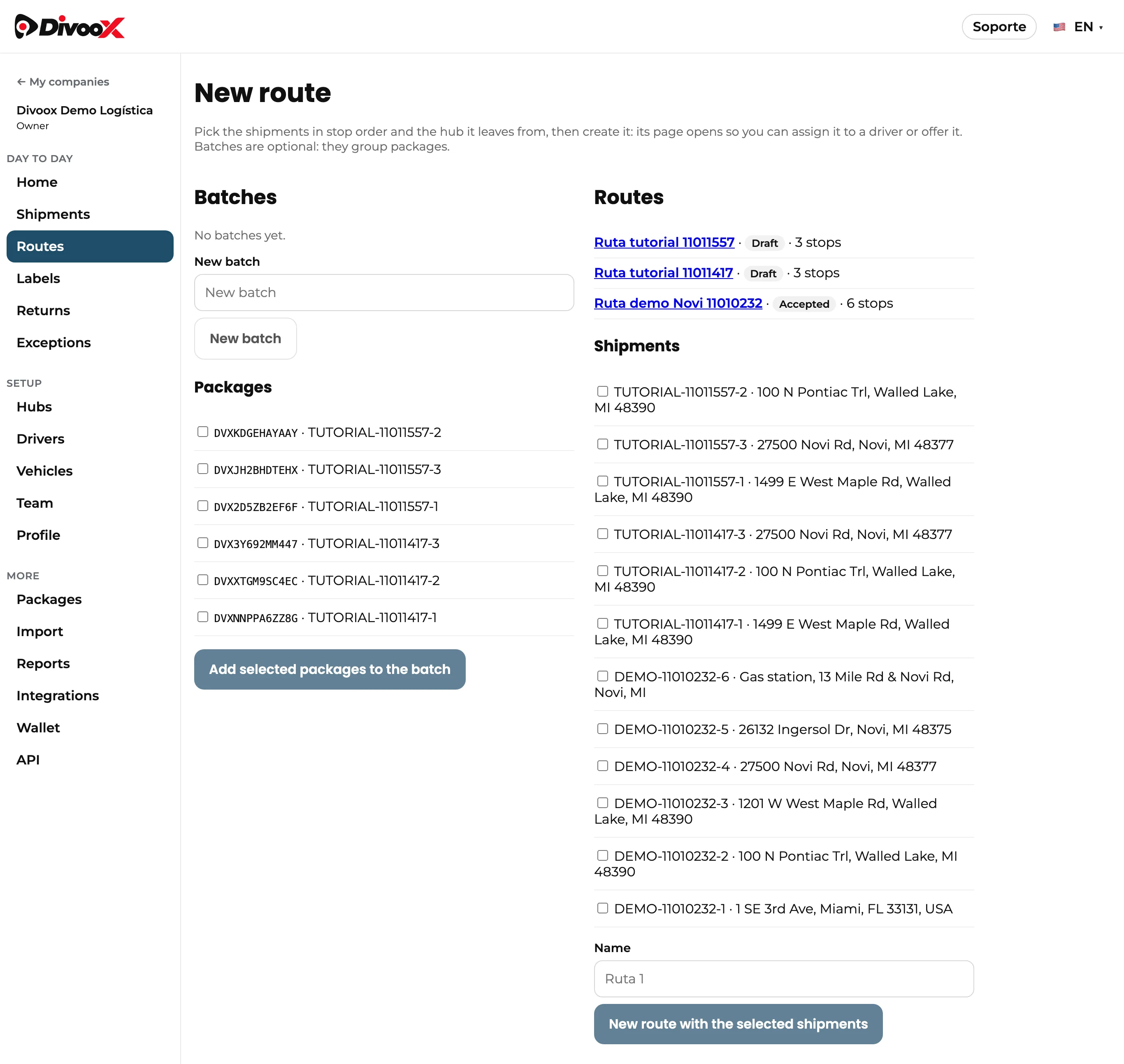
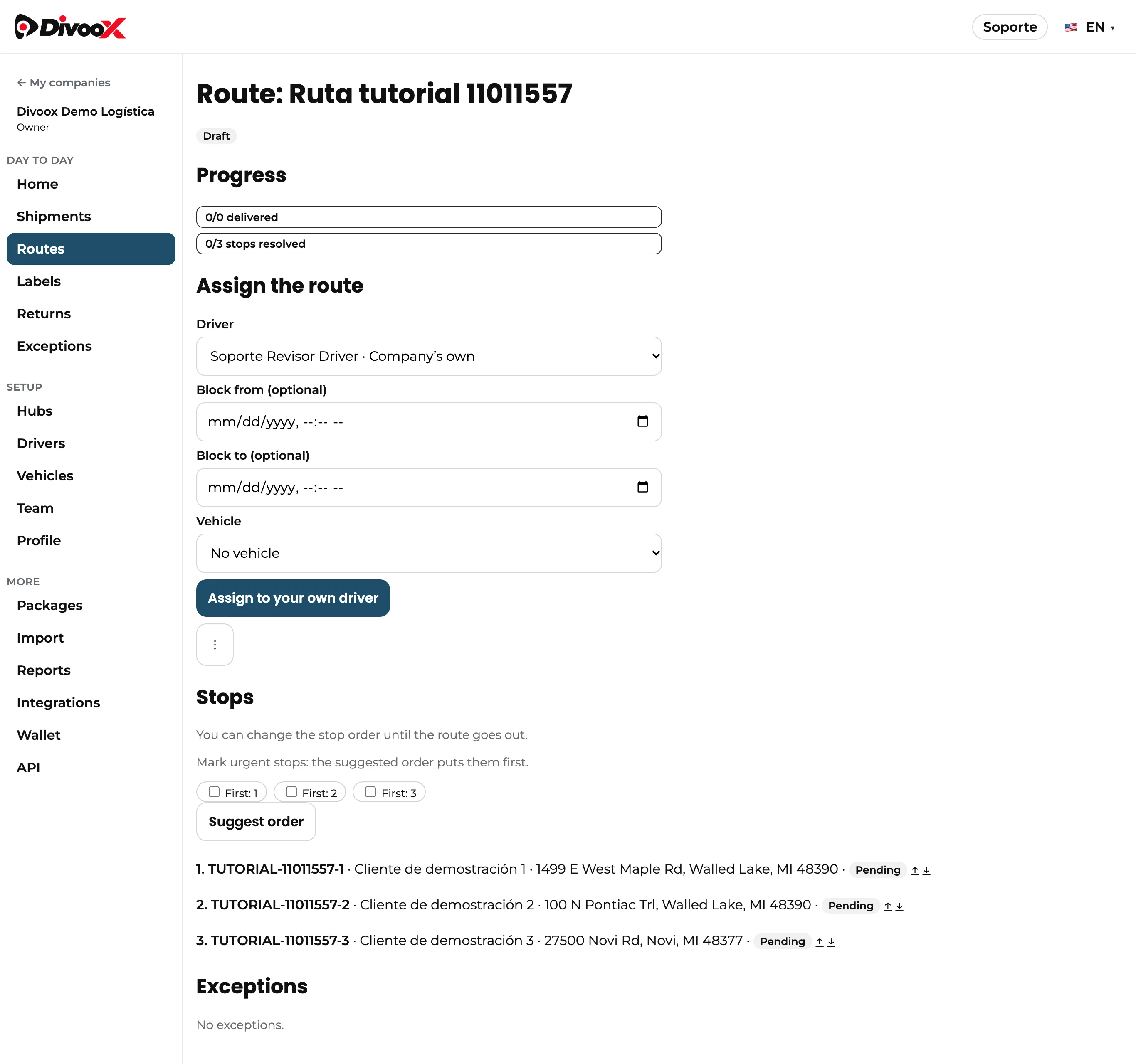
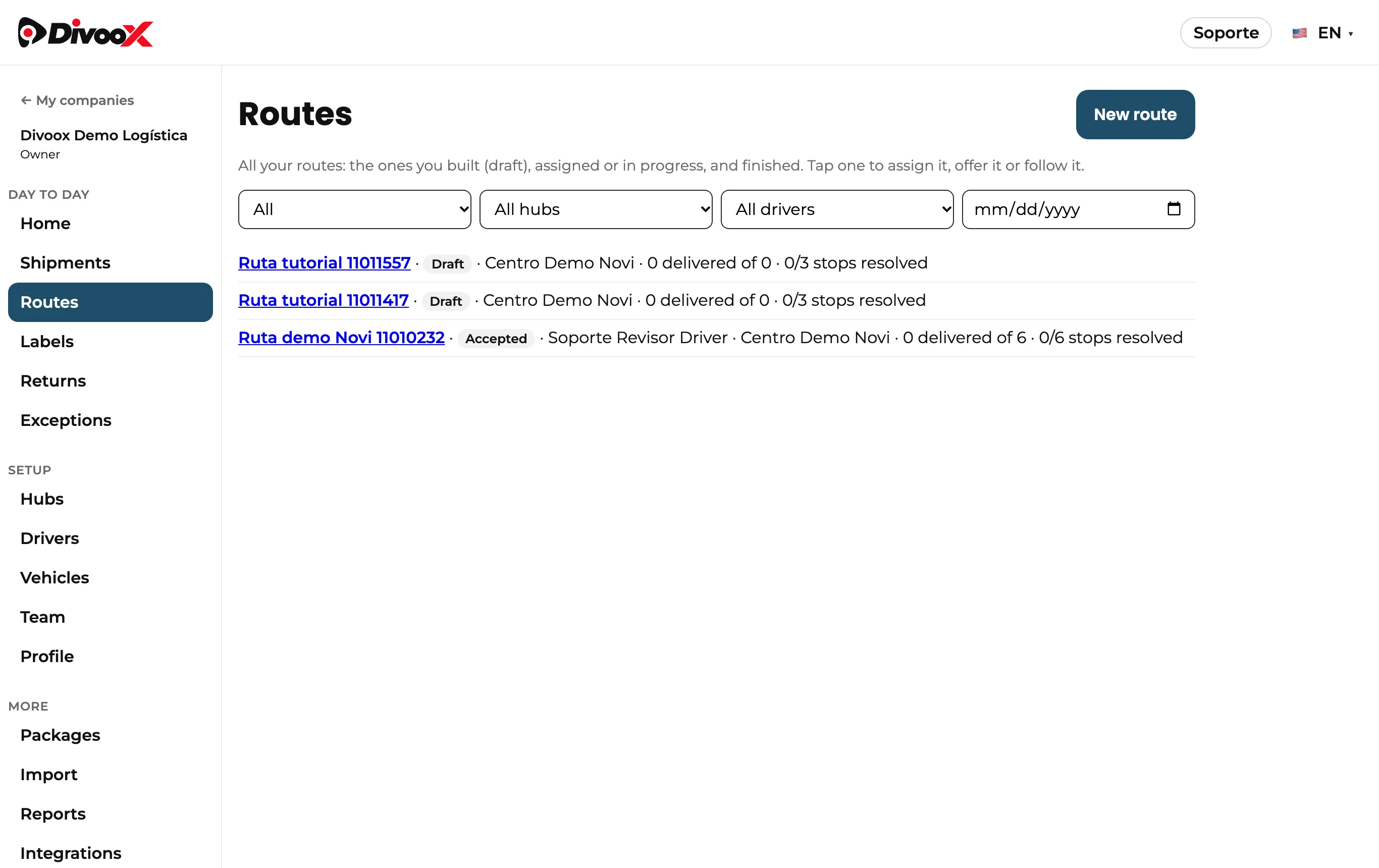
6. In “Routes”, tap “New route”: pick the shipments in stop order and the hub it leaves from. We suggest the best order.
7. Once created, its page opens: assign it to your driver (or offer it with a deadline to accept).
8. Your driver arrives at the hub, scans each package and heads out. At each stop they scan, take the photo, signature or PIN you require, and swipe to finish. Deliveries far from the address aren’t allowed.
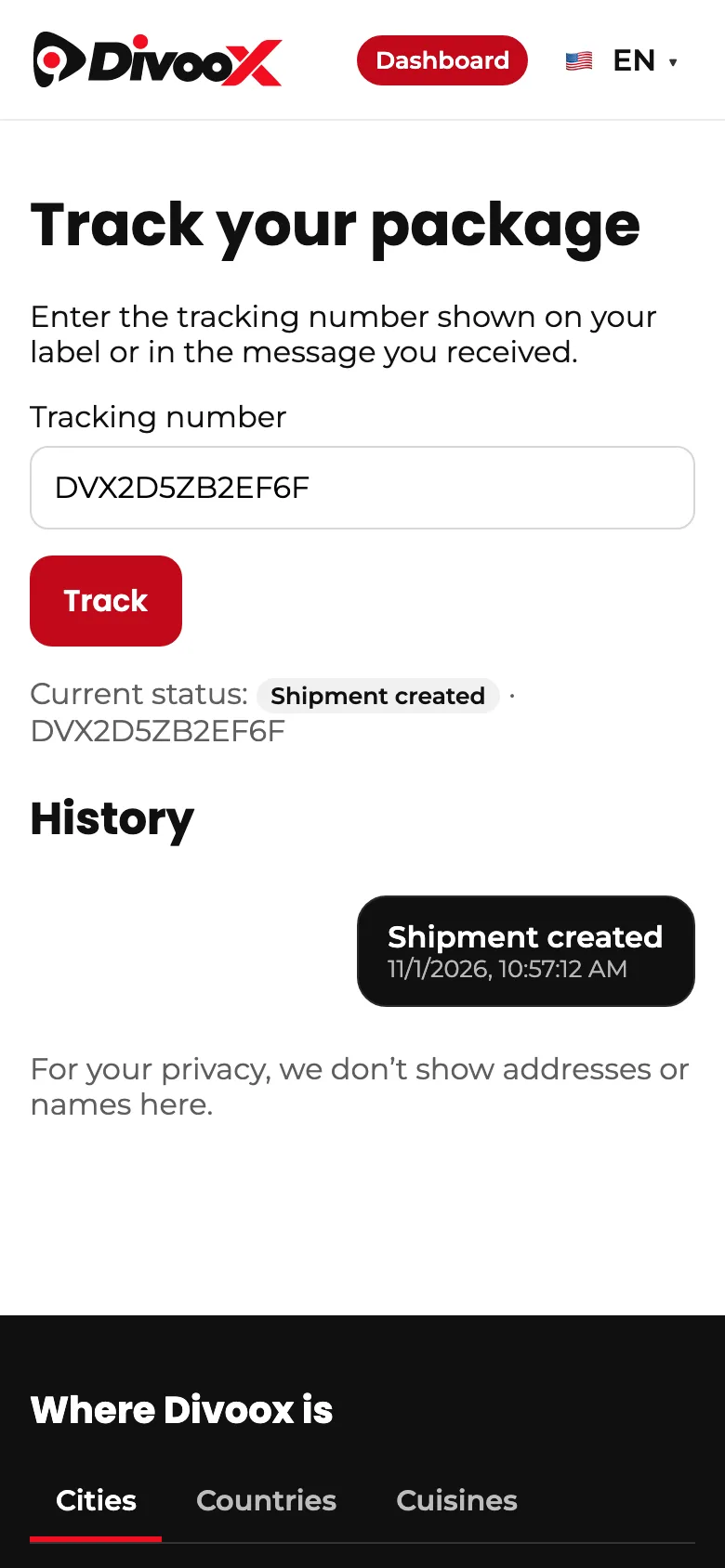
9. Recipients get the alerts: on the way, arriving soon (with the driver’s name, vehicle and plate) and delivered, with the proof. You follow everything in “Routes”, stop by stop.
Steps
- Register your company and your first hub in the business dashboard.
- Invite your drivers in “Drivers”.
- Load your shipments and print the labels.
- In “Routes”, create the route and assign it to your driver.
- Follow every delivery in “Routes”.
Divoox Flex doesn’t charge for now. Each country has its own rules: in Venezuela, for example, the recipient’s location is confirmed before heading out and cash on delivery is available.
This guide answers
- How do I get started with Divoox Flex?
- Which app do my company, my drivers and my customers use?
- Does Divoox provide the drivers?
- How do I invite my drivers?