
Send yourself a test order
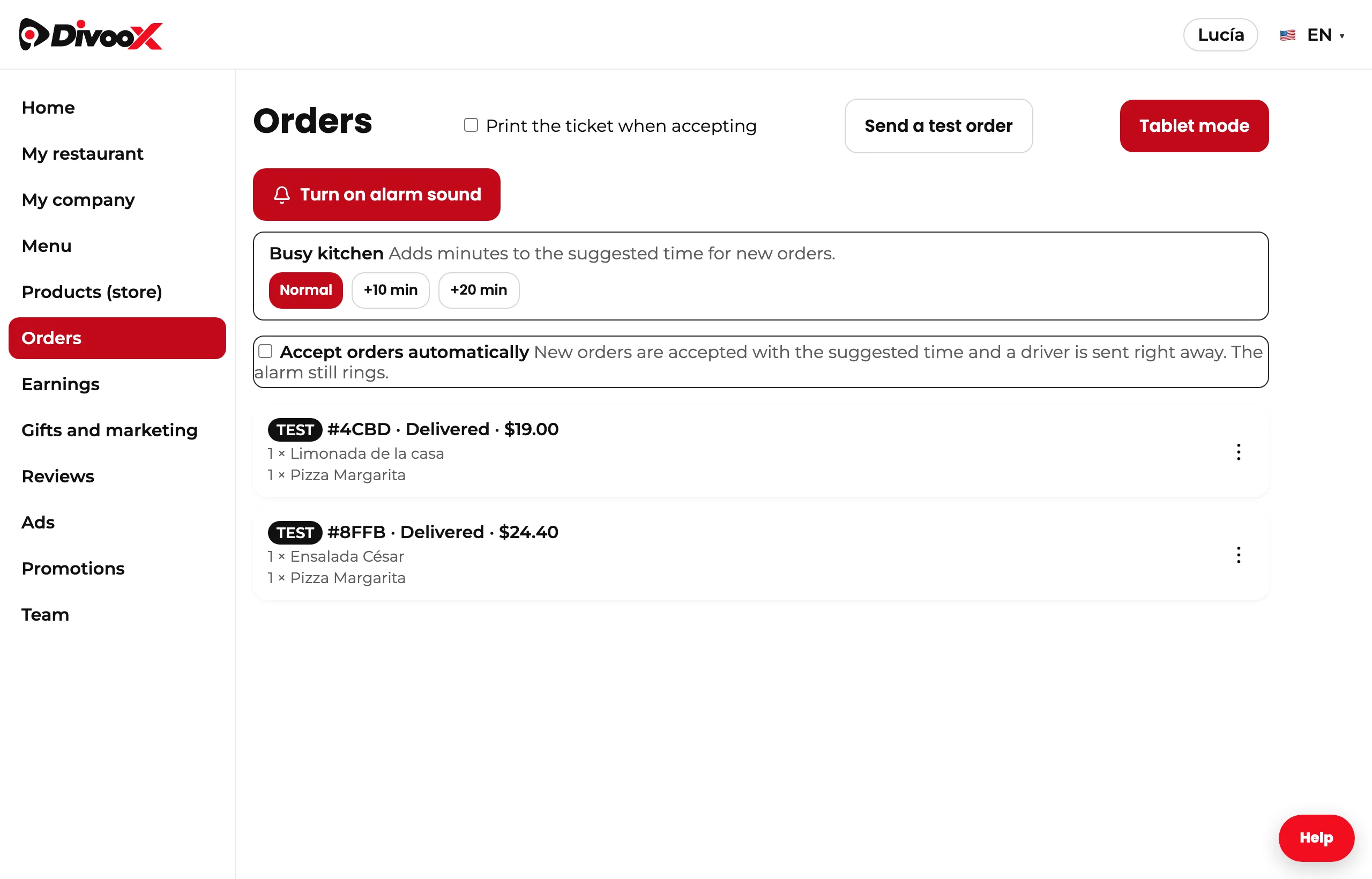
Before you open, send yourself a test order: it rings the alarm like a real one and you practice accepting, printing, and marking it ready. Nothing is charged, no driver is sent, and it doesn’t count in your sales.
How it works
The test order looks just like a real one on your screen, but nobody paid for it: no one is charged, no driver is sent, and it doesn’t show up in your sales, reports, or payouts.
You need at least one available item on your menu, because the order is built from your items.
You can have one open at a time and up to ten a day. To start over, reject it from the three dots and send another.
A test order has no pickup QR code and no “Report a problem” option, because no driver or support agent handles it.
It’s also a great way to train your team on how to handle an order without fear of mistakes.
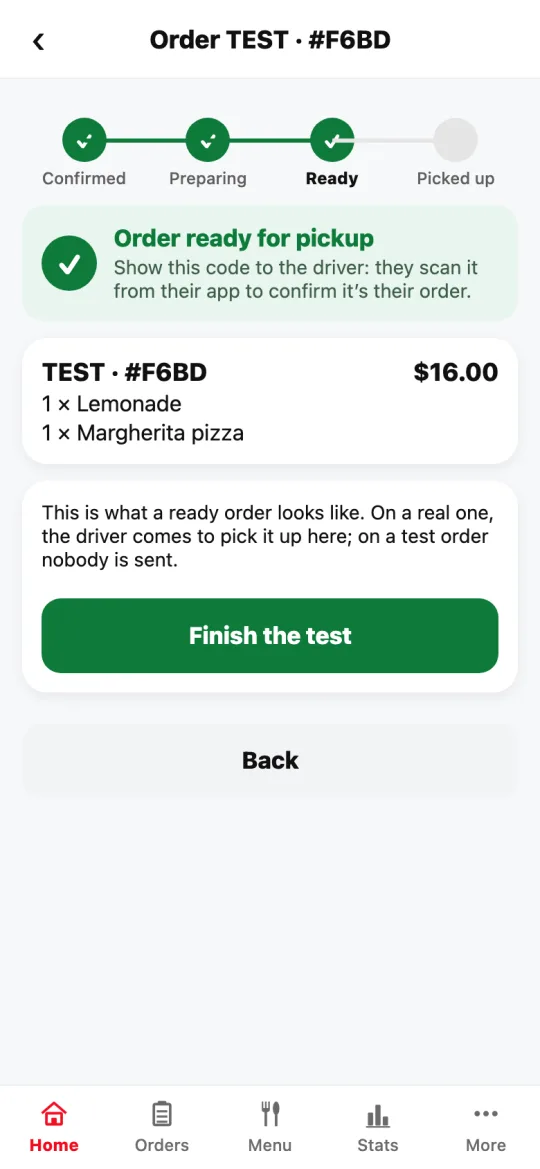
Steps
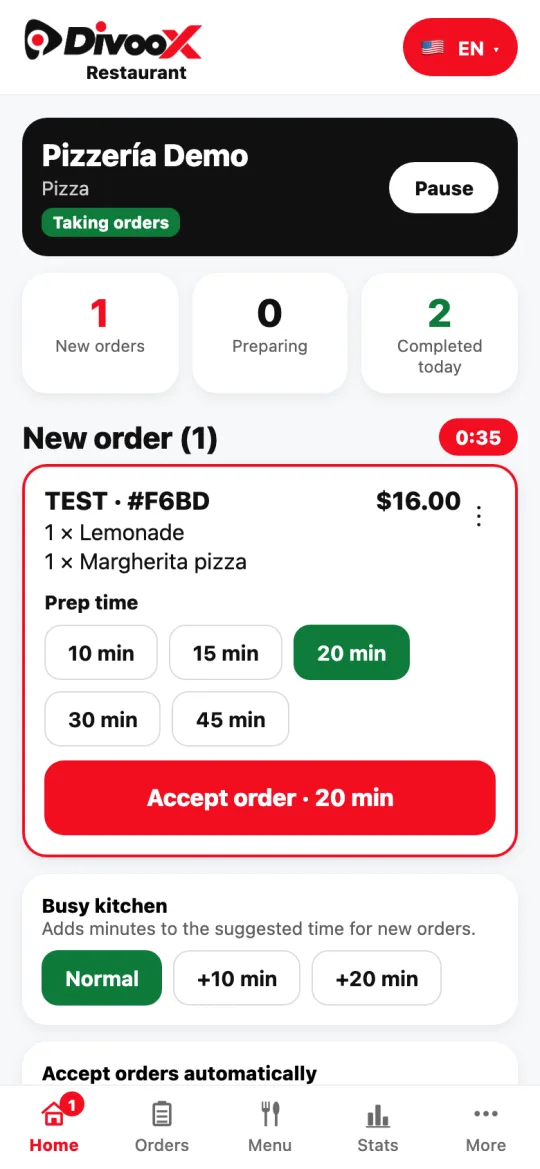
- In the dashboard, go to Orders and tap “Send a test order.” In the restaurant app, the button is on Home, below new orders.
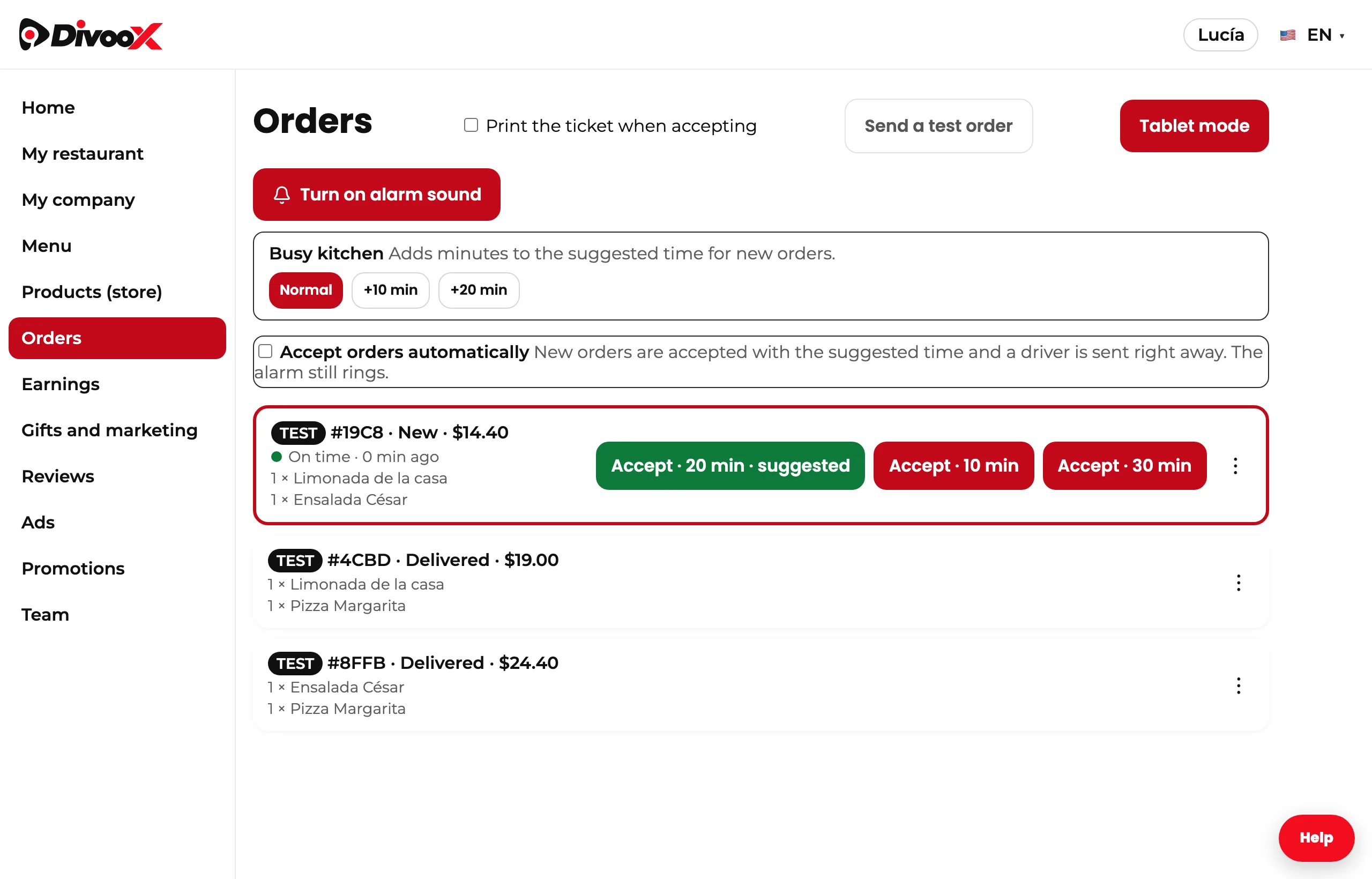
- An order marked “TEST” arrives with one or two items from your menu, with the usual alarm.
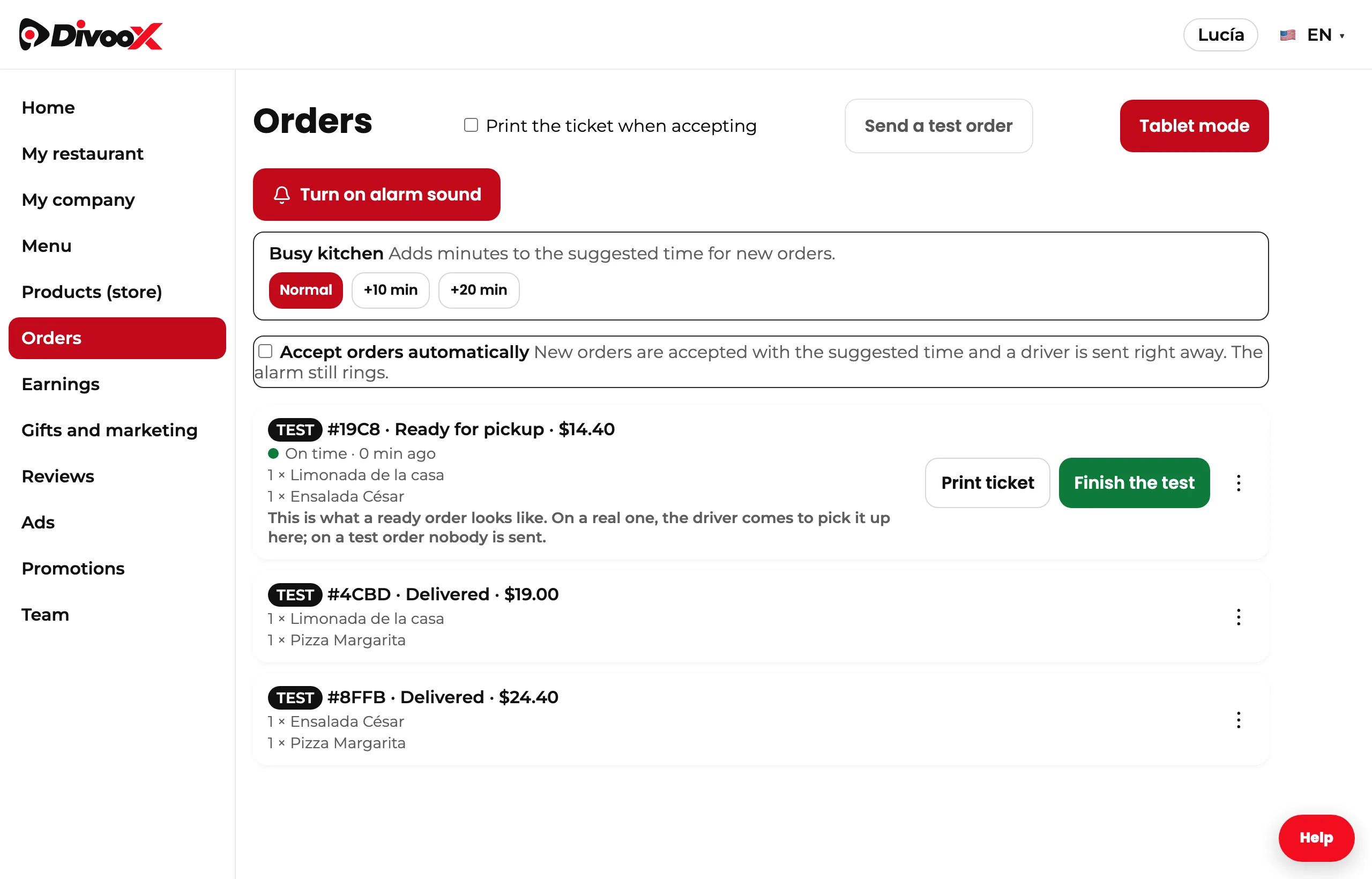
- Accept it with a prep time, print the ticket if you use a printer, and tap “Ready!”
- Tap “Finish the test.” Done: now you know what an order looks like from start to finish.
This guide answers
- How do I check that orders reach me?
- How do I practice with my team before opening?
- Is the test order charged or counted in my sales?