
Install Divoox from your phone’s browser
No app store needed: open Divoox in Chrome or Safari, add it to your Home Screen, and it opens full screen, like an app.
How it works
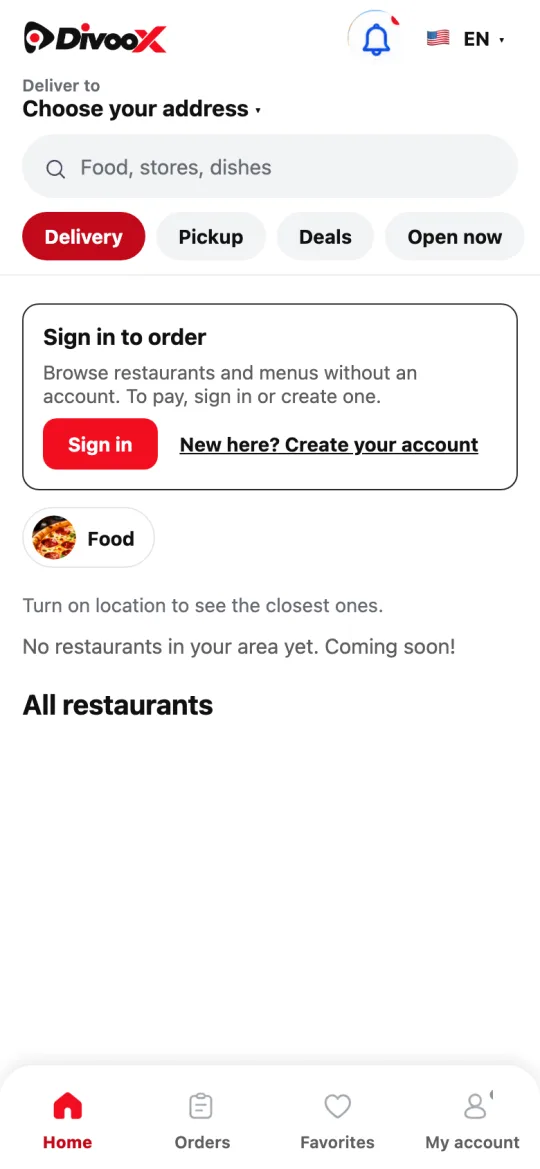
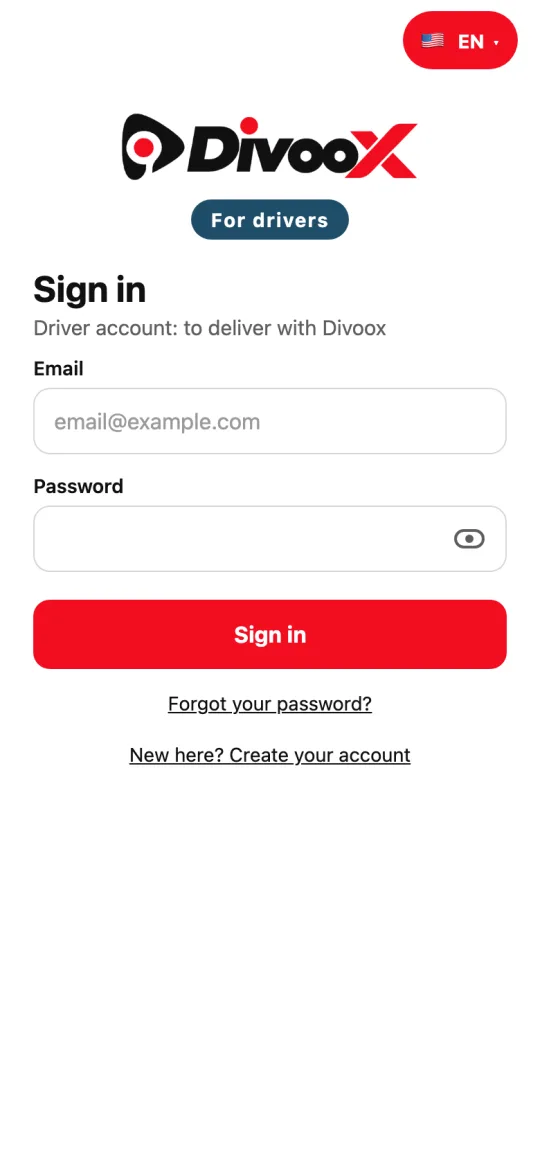
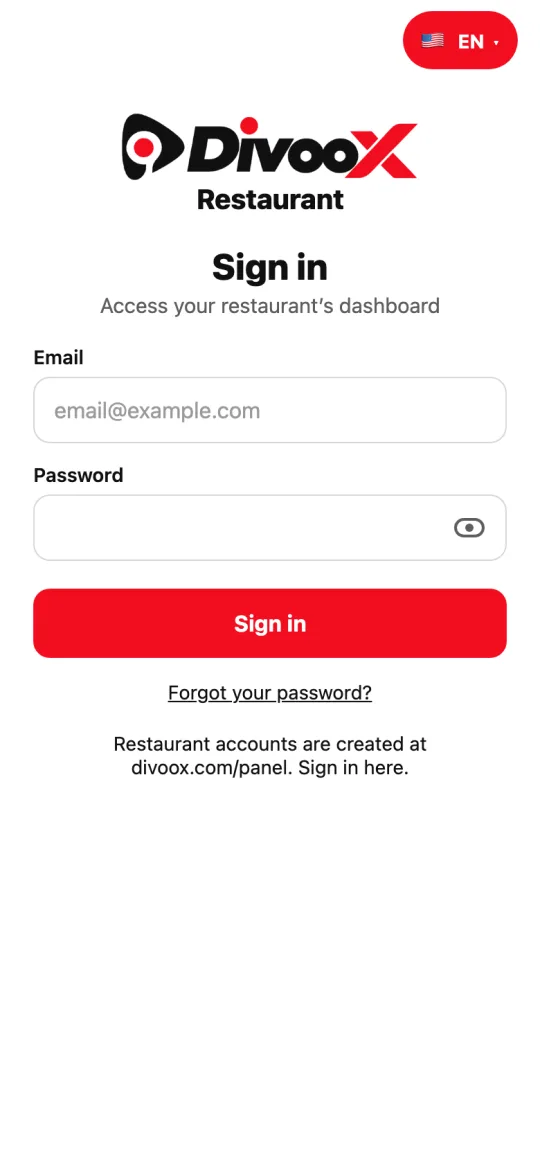
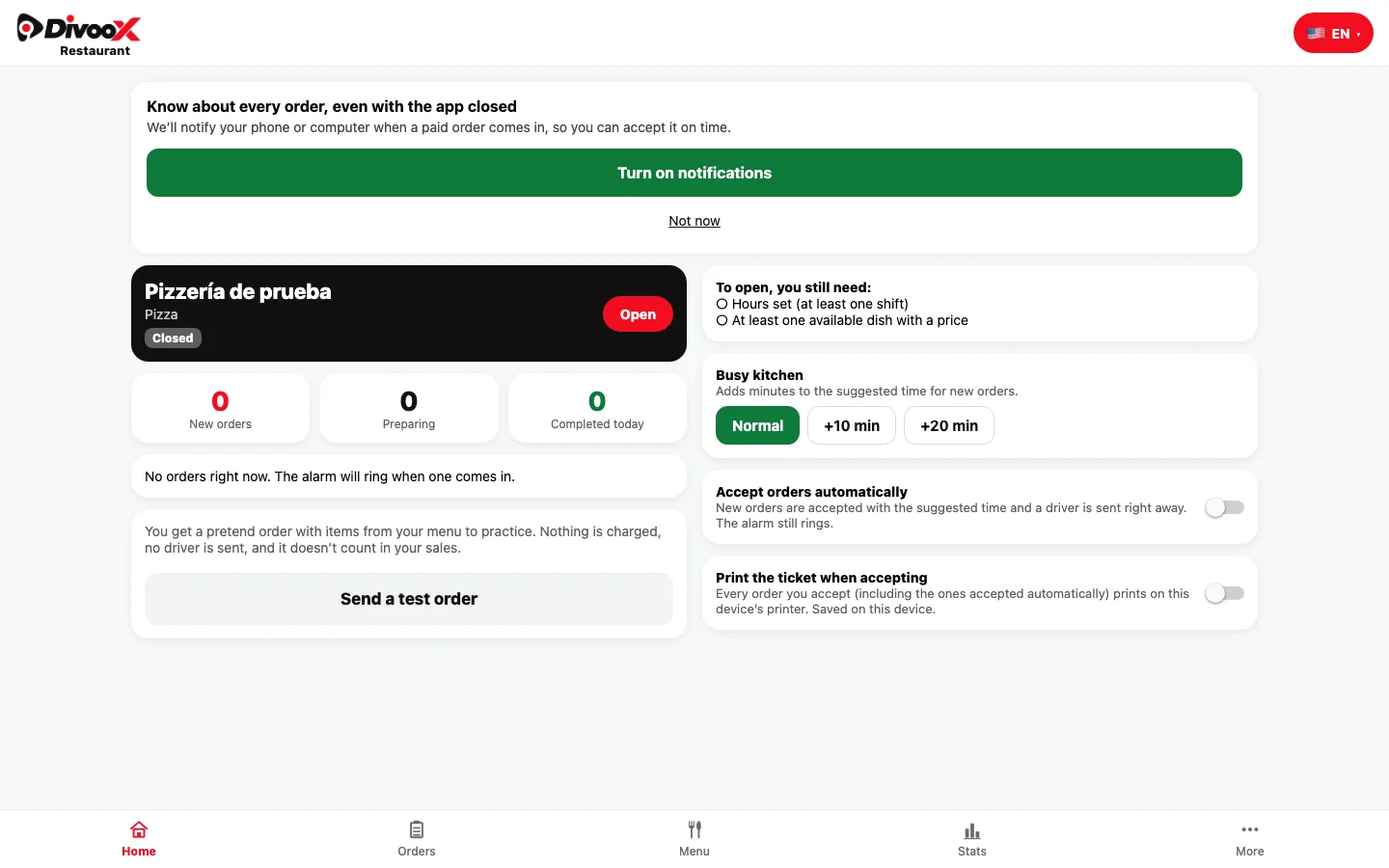
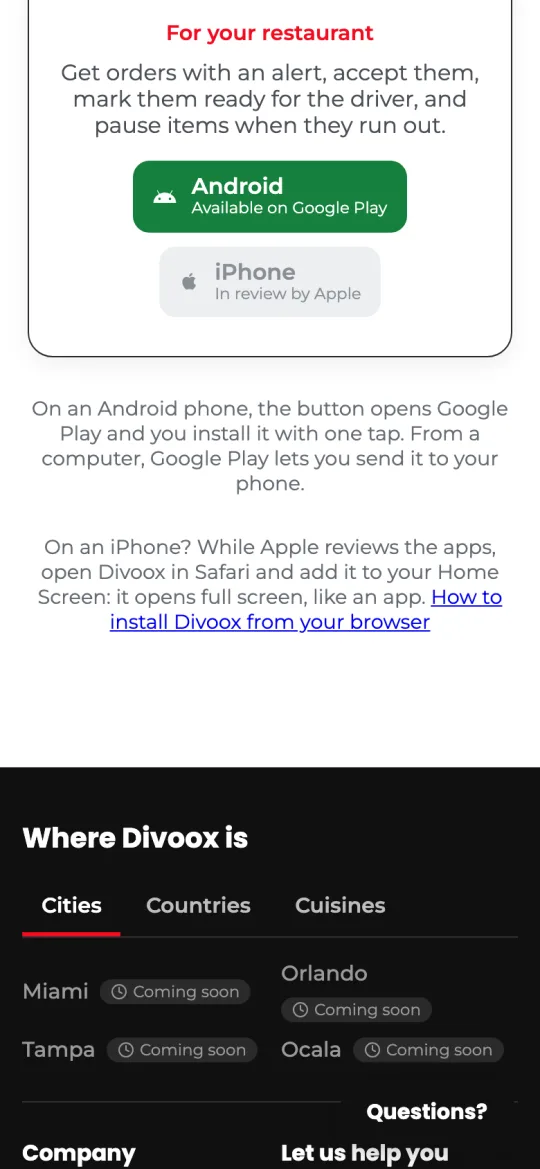
All three Divoox apps also work in your phone’s browser: Divoox to order (divoox.com/app), Divoox Driver to deliver (divoox.com/driver), and Divoox Restaurants for your restaurant (divoox.com/restaurant). It’s handy on iPhone while Apple reviews the apps, and for anyone who’d rather not install from a store.
Once it’s on your Home Screen, it has its own name, icon, and color, and it opens full screen, without the browser bar. You sign in with the same account as always.
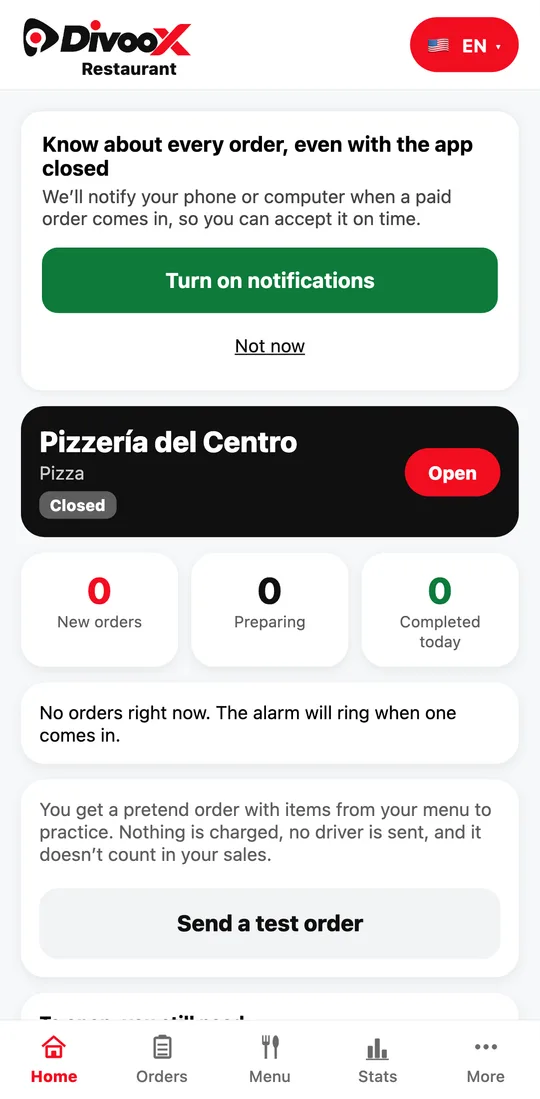
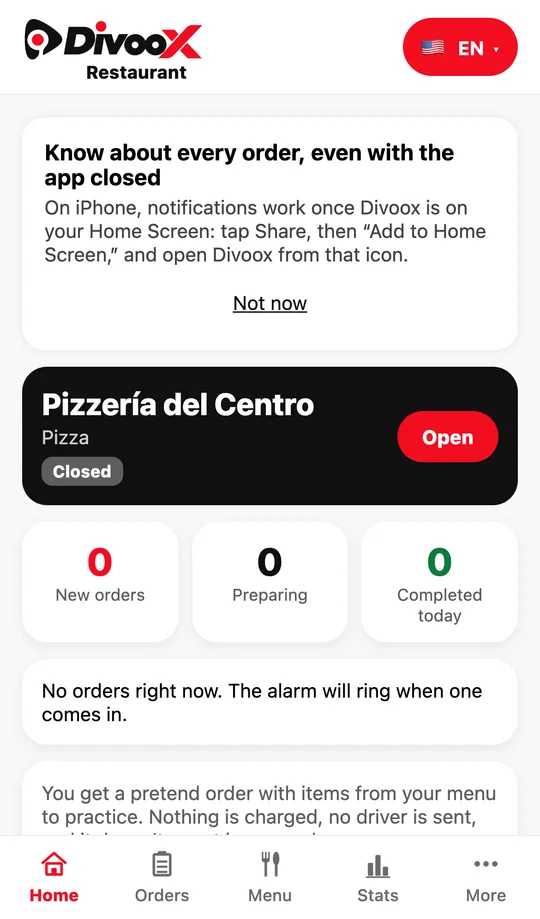
Notifications: installed from the browser, Divoox can also notify you with the app closed, if you allow it. Restaurants see the explanation when they sign in, drivers when they go online, and customers after placing an order: tap “Turn on notifications” and accept your phone’s prompt. We never ask until you tap the button.
On Android (Chrome), notifications work in the browser or with the app on your Home Screen. On iPhone (iOS 16.4 or later), they only work with Divoox added to your Home Screen and opened from that icon: in Safari, without adding it, they don’t exist, and the app tells you so in one line. If you said no, turn them back on in the site settings (the lock next to the address) or, on iPhone, in Settings, Notifications, Divoox.
If you don’t allow notifications (or on iPhone without adding Divoox to your Home Screen), you won’t get them: in that case keep Divoox open to see each new order. Also, installed this way, drivers don’t share their location with the screen off (keep the app open while delivering), and the restaurant’s pickup code is typed in instead of scanned with the camera. On Android, the Google Play app has none of these limits.
Steps
- Open your app’s address in your phone’s browser: divoox.com/app to order, divoox.com/driver to deliver, or divoox.com/restaurant for your restaurant.
- On iPhone (Safari): tap the Share button (the square with the up arrow), scroll down and tap “Add to Home Screen,” then “Add.”
- On Android (Chrome): tap the three dots in the top right, choose “Install app” or “Add to Home screen,” and confirm.
- Find the Divoox icon on your Home Screen and open it: it opens full screen. Sign in with your account.
- When the app explains it, tap “Turn on notifications” and accept: that way orders reach you with the app closed. If you deliver, still keep Divoox open while you work so your location keeps coming through.
The Share, Add to Home Screen, and Install app menus belong to your phone and their names can vary a little by version. If you don’t see them, update your browser.
This guide answers
- How do I install Divoox on my iPhone if it isn’t in the App Store?
- Can I use Divoox without downloading it from a store?
- How do I add Divoox to my Home Screen?
- What doesn’t work in the browser version?
- Do I get notifications with Divoox installed from the browser?