
Divoox Flex: import shipments from Excel with the template
Download the template, fill in one row per shipment and upload it as is: the dashboard reads your Excel file, shows you every row and creates the valid shipments.
How it works
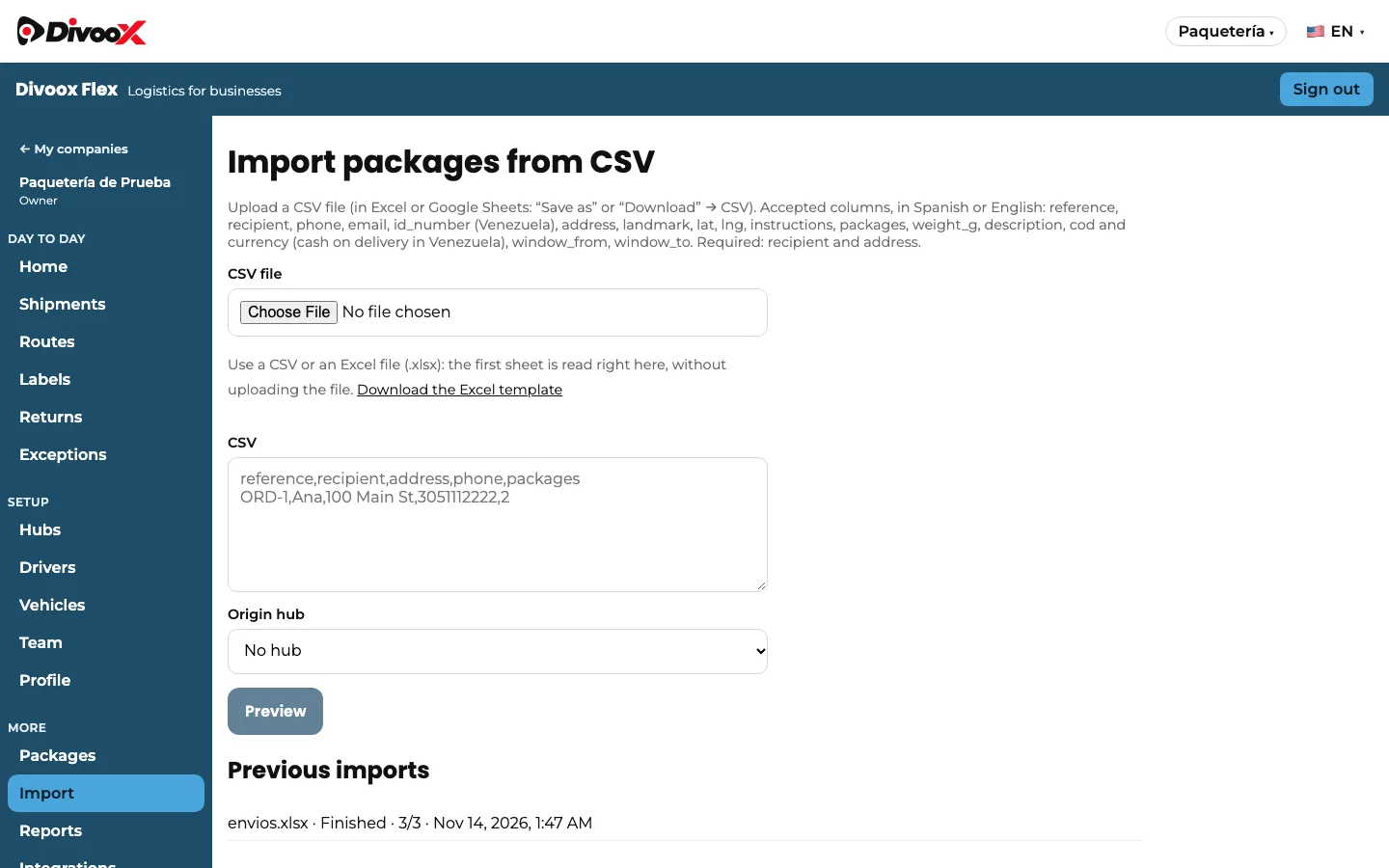
In “Import” you can upload an Excel file (.xlsx) or a CSV. The Excel file is read in your browser, without uploading it: the first sheet and its saved values are used (formulas, colors and formatting don’t count).
Tap “Download the Excel template” to get a sheet with the column headers: reference, recipient, phone, email, address, latitude, longitude, number of packages, description, instructions and delivery window. Headers are in English and Spanish headers work too. Only the recipient and the address are required.
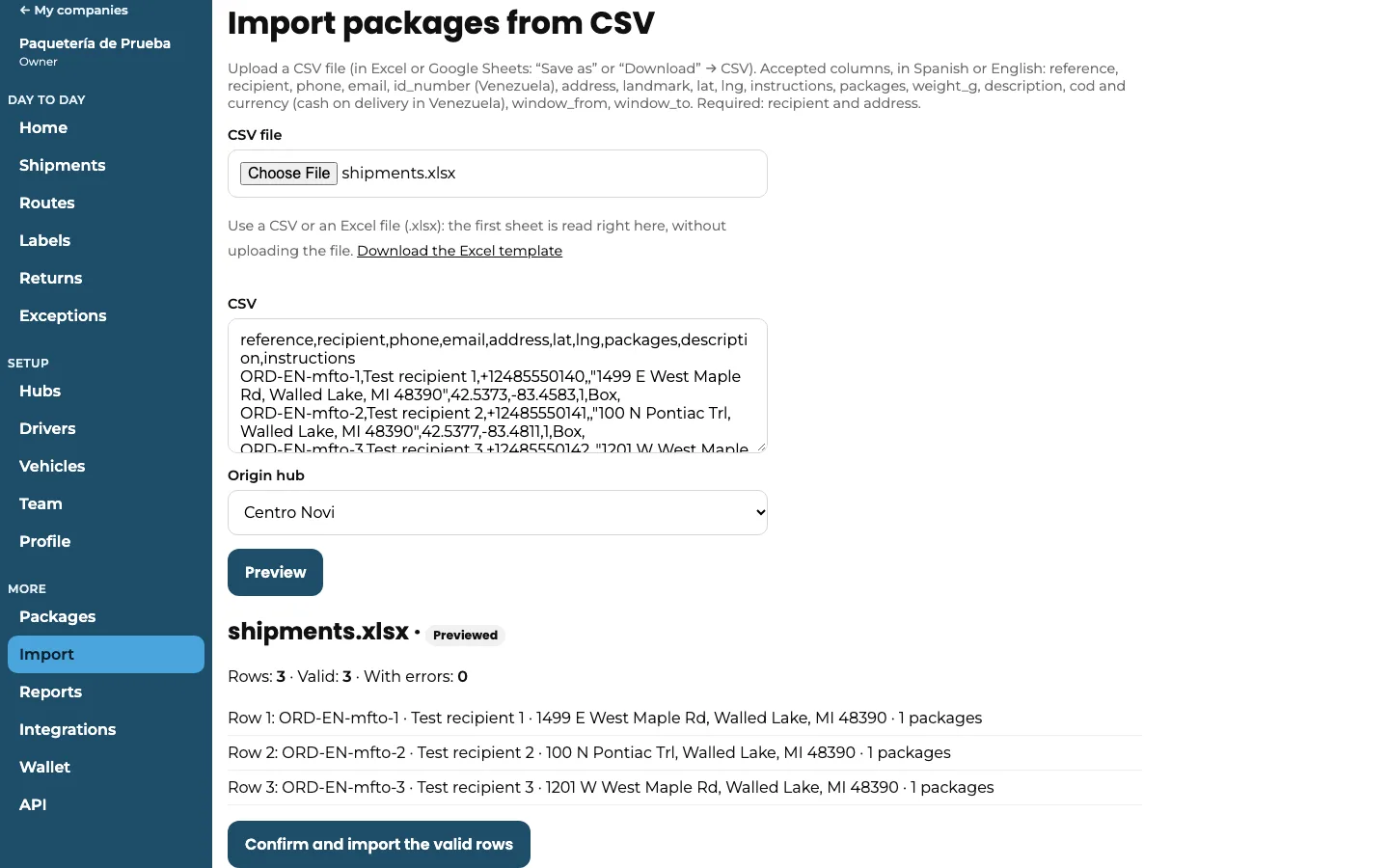
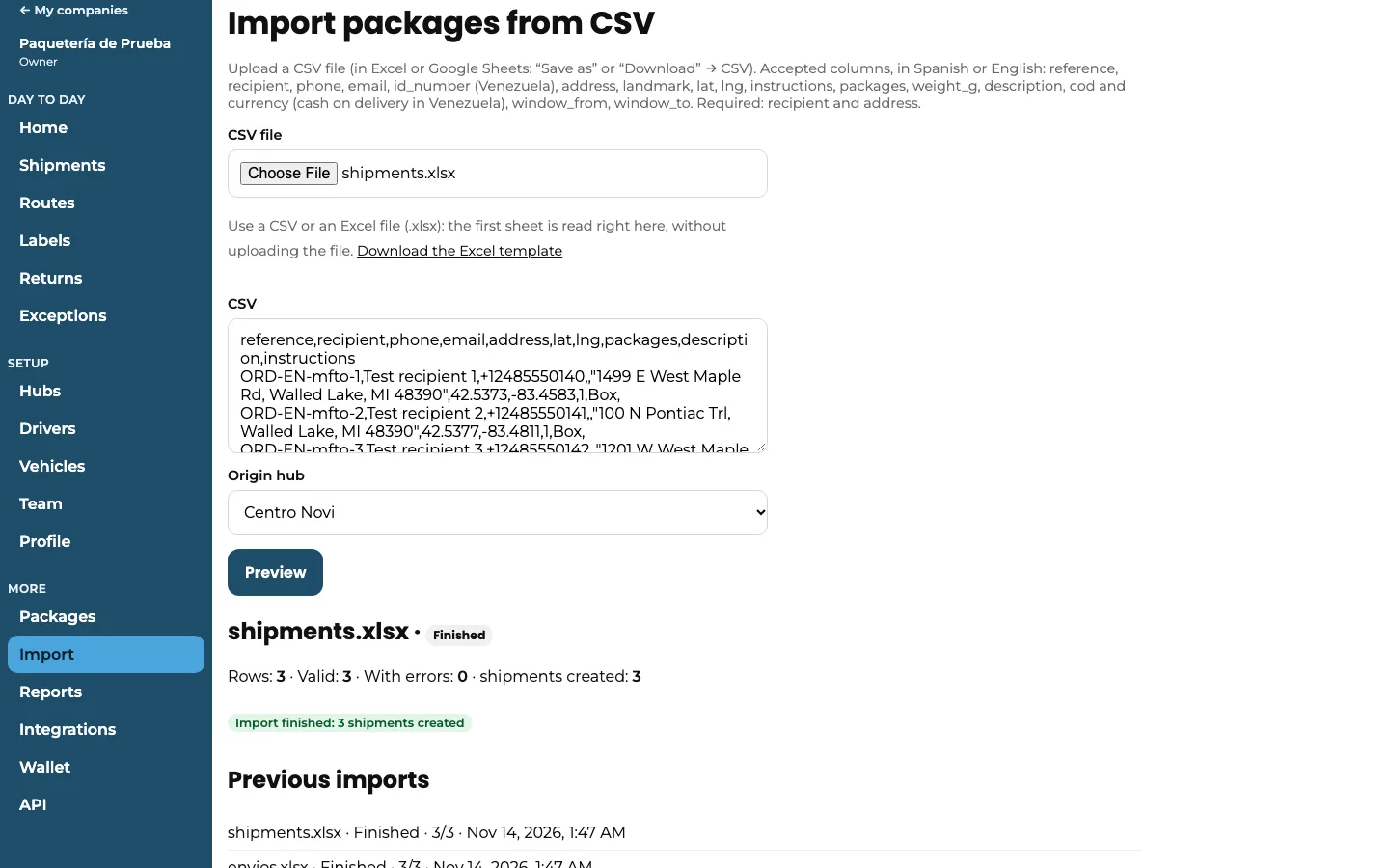
Before anything is created, “Preview” shows how many rows there are, how many are valid and the exact error for each row that isn’t. When you confirm, only the valid rows are created; fix the others in your Excel file and upload them again.
Each file can have up to 5,000 rows and 5 MB. Your previous imports stay in the list below, with their status.
Steps
- In your company dashboard, go to “Import” and tap “Download the Excel template”.
- Fill in one row per shipment and save the file as .xlsx.
- Choose the file and the origin hub, and tap “Preview”.
- Check the valid rows and the errors, and tap the button to confirm and import the valid ones.
- Fix the rows with errors in your Excel file and upload them again.
After importing, print the labels and build the route (guide “import shipments and print labels”).
This guide answers
- How do I import shipments from Excel?
- Where do I download the Excel template?
- Which columns does the file need?
- What happens to rows with errors?