
Divoox Flex: export your lists to a spreadsheet
Download your shipments, packages, routes, returns, exceptions or wallet activity as a file that opens in Excel or Google Sheets.
How it works
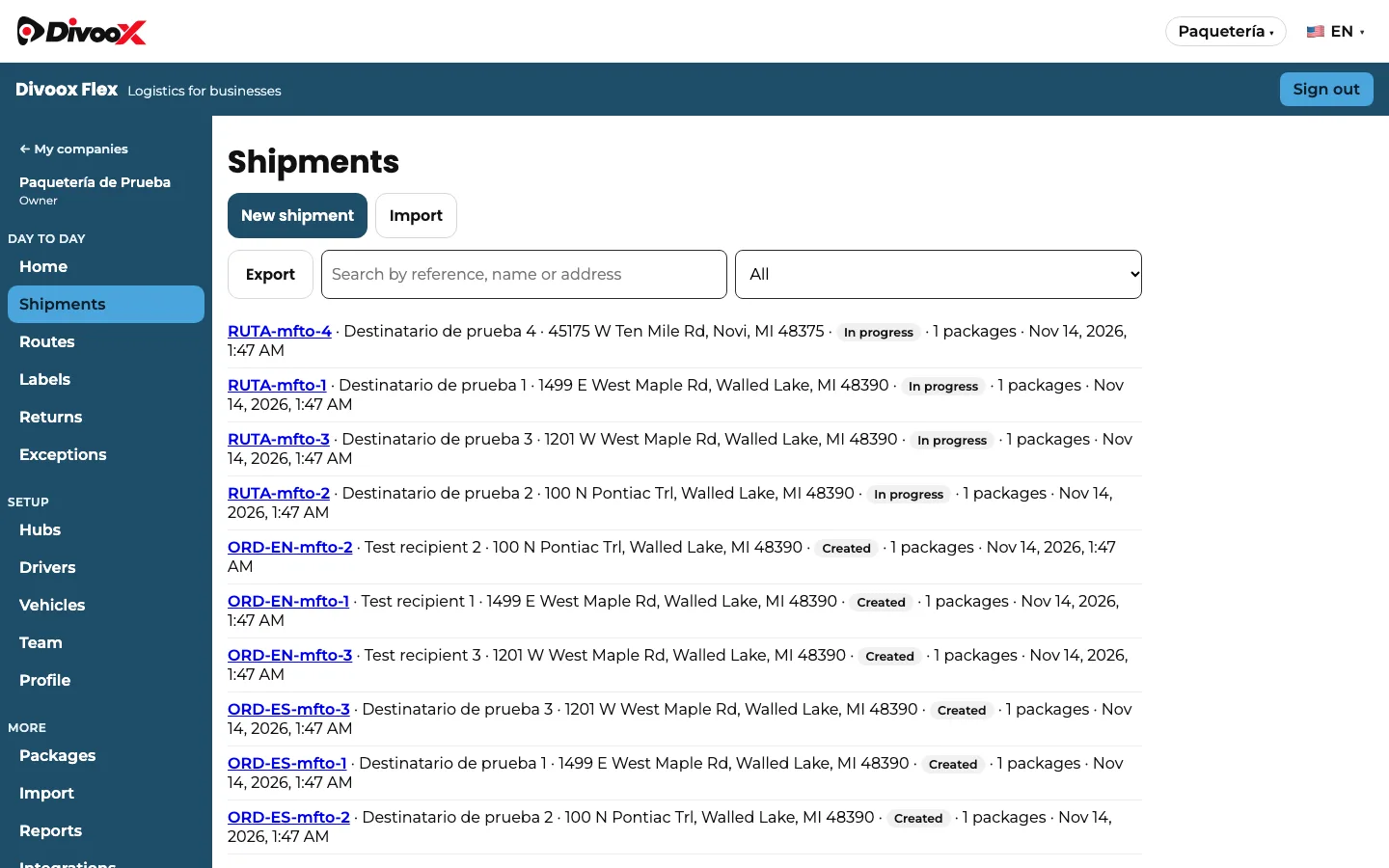
Every list in the dashboard has its own “Export” button: Shipments, Packages, Routes, Returns, Exceptions and your Wallet activity. The file is a CSV, which opens right away in Excel, Google Sheets or Numbers.
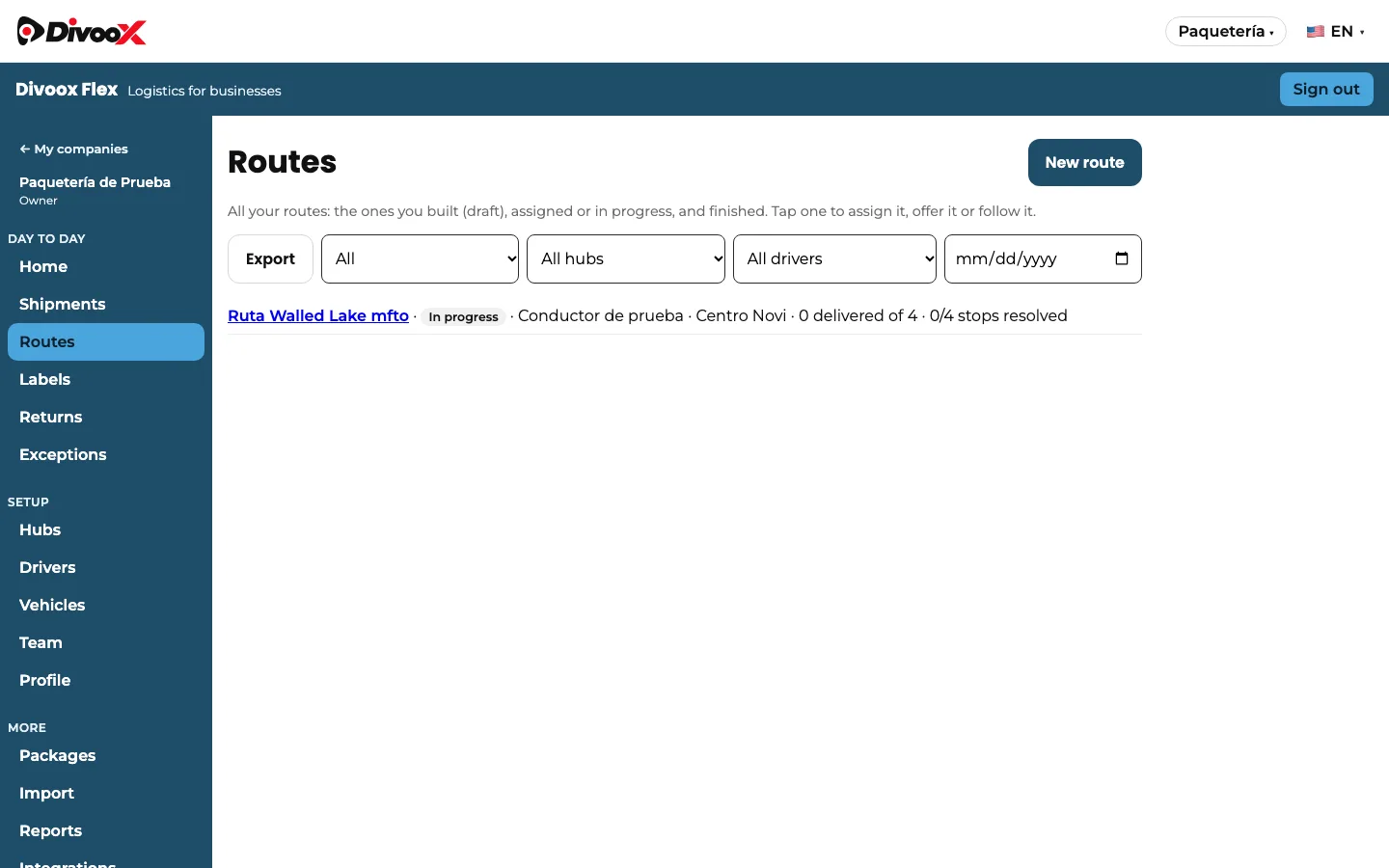
The file contains exactly what you’re looking at: if you searched for a reference or filtered by status, hub, driver or date, only that is exported. That way you can pull, for example, this week’s failed deliveries or one driver’s routes.
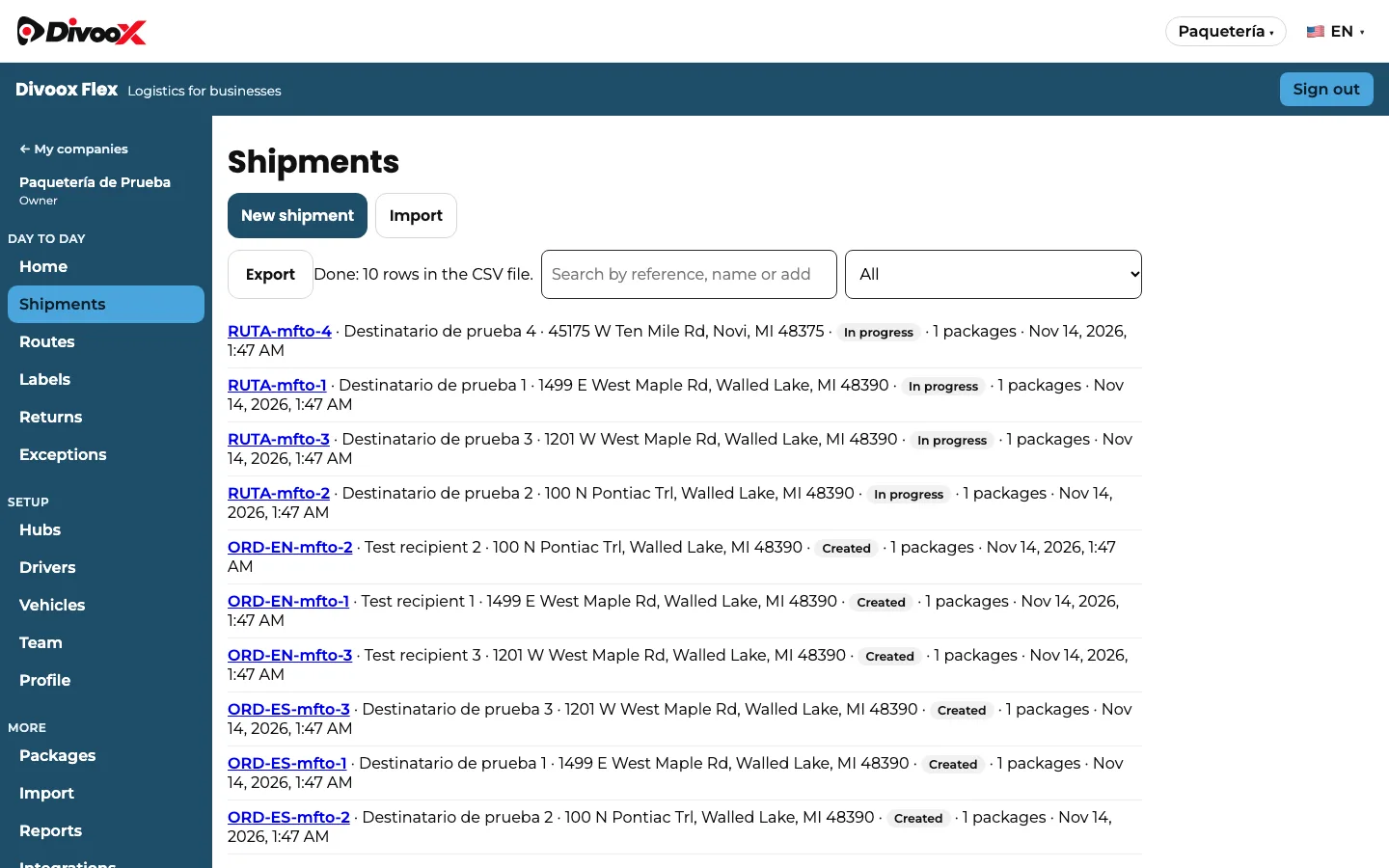
Each file holds up to 10,000 rows. If your list is bigger, the dashboard tells you it downloaded the first rows and asks you to add a filter to get the rest. Exporting doesn’t change anything in your account: it only reads.
Steps
- Open the list you want to download: Shipments, Packages, Routes, Returns, Exceptions or Wallet.
- If you only want part of it, search or set the filters (status, hub, driver or date).
- Tap “Export” and wait for the message with the number of rows.
- Open the downloaded file in Excel or Google Sheets.
To load shipments from a spreadsheet, see the guide “import shipments from Excel”.
This guide answers
- How do I export my shipments to Excel?
- Can I download my routes as a spreadsheet?
- How do I export my wallet activity?
- How many rows does the exported file have?