The Divoox Flex dashboard: menu, search and your account
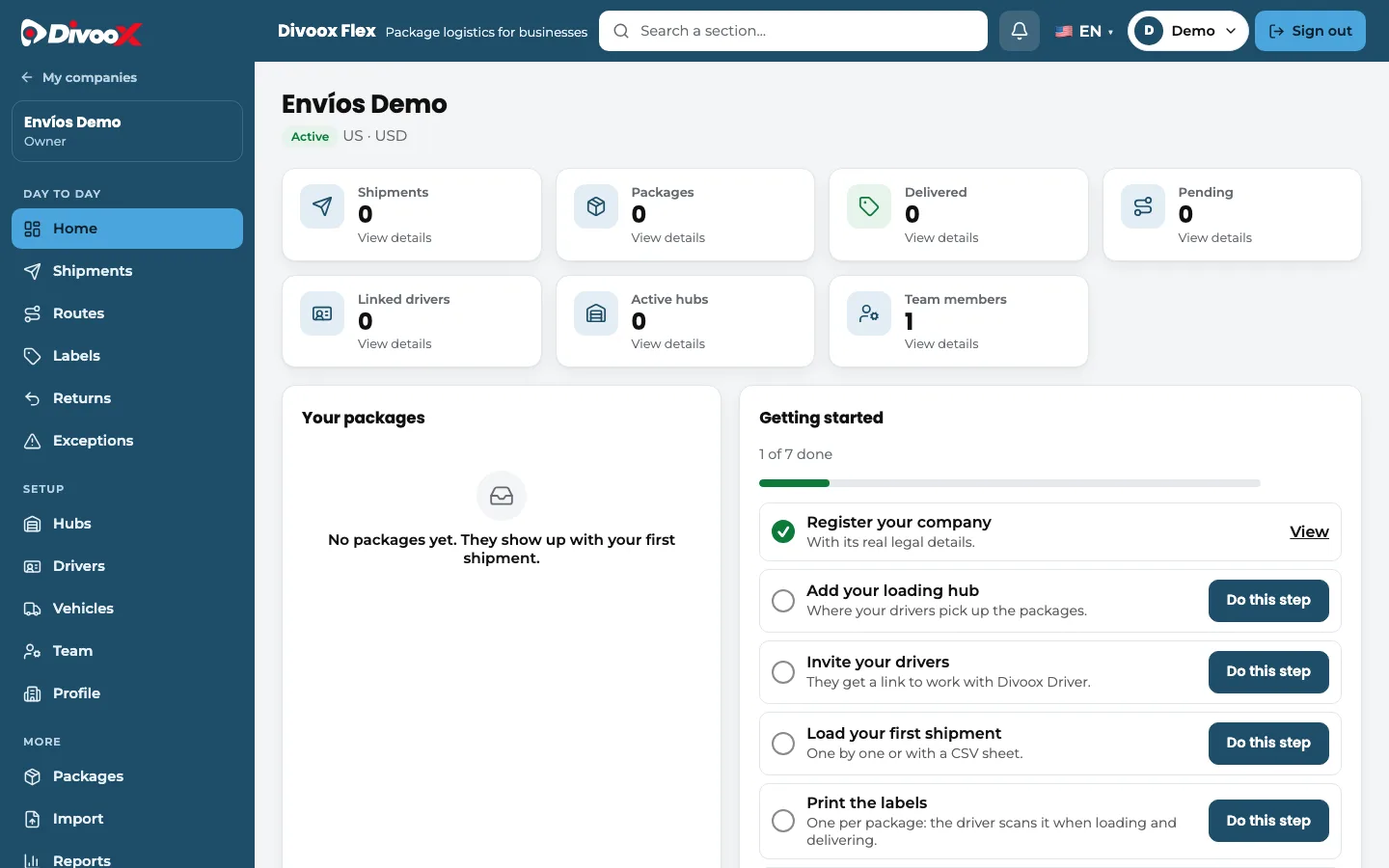
Your company’s Divoox Flex dashboard is blue, with a grouped menu, a search box, a bell with your pending packages and sign out always in view.
How it works
Divoox Flex has its own color, logistics blue, so you can tell at a glance that you’re in your company’s dashboard and not the food one. The top always says “Divoox Flex”.
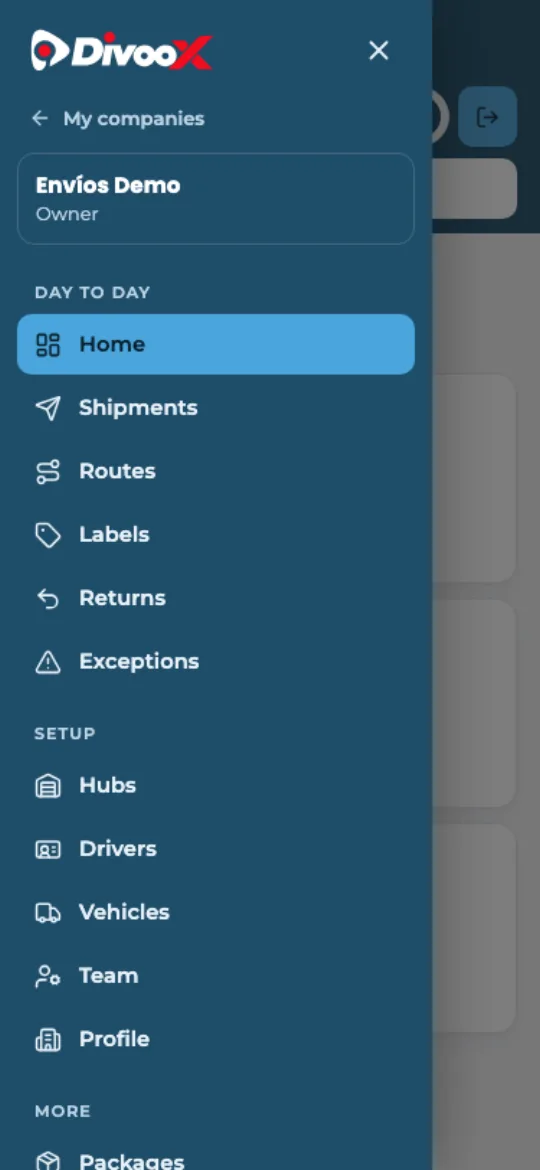
The menu on the left shows your company and your role, in three groups: “Day to day” (home, shipments, routes, labels, returns and incidents), “Setup” (hubs, drivers, vehicles, team and profile) and “More”. You only see the sections your role can use.
Home sums up your operation in cards (shipments, packages, delivered, pending, drivers, hubs and team), a chart of your packages and your getting-started steps with their progress bar.
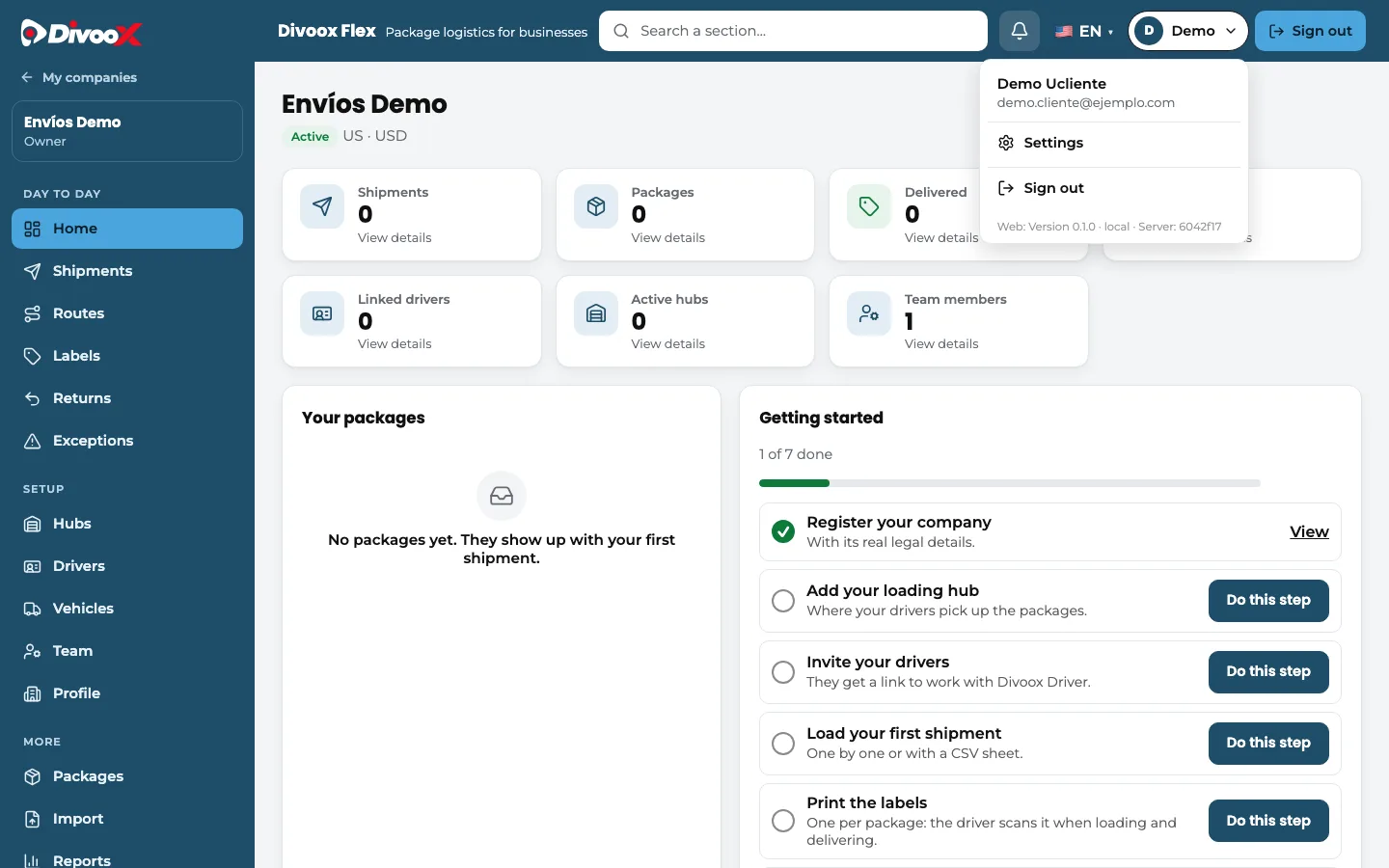
At the top you have the section search, the bell with pending packages, the language, your account and “Sign out”.
Steps
- Open the Divoox Flex dashboard and pick your company.
- Use the menu on the left to go to shipments, routes, labels or drivers. On a phone, open it with the three-line button.
- Type in the search box at the top to get to a section faster.
- To switch companies, tap “My companies” above the menu. To leave, “Sign out”.
This guide answers
- How do I get around the Divoox Flex dashboard?