
Getting around your dashboard: menu, search and notifications
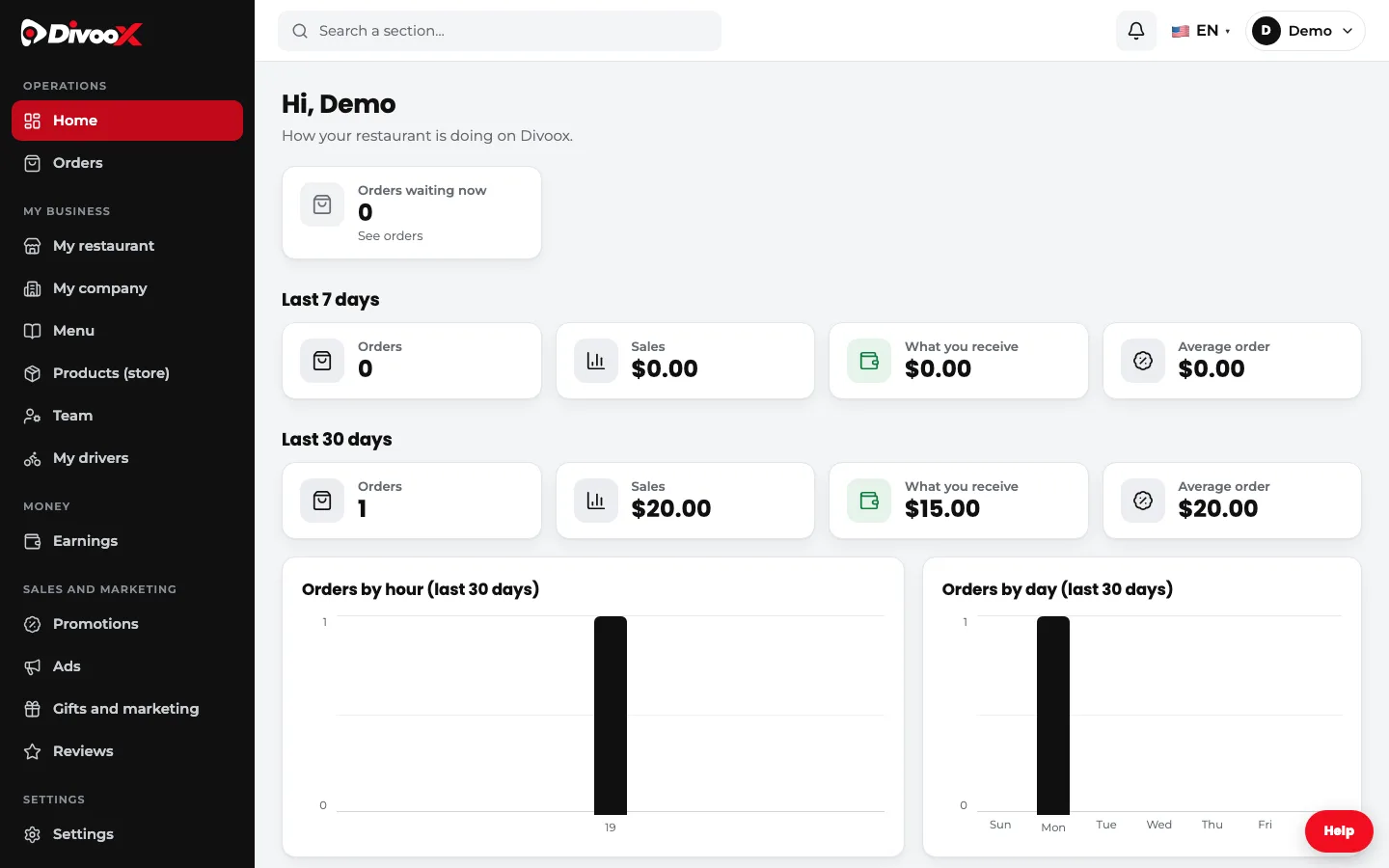
Your restaurant’s web dashboard has a menu with icons on the left, a search box at the top, a bell with what’s waiting on you, and your account with “Sign out”. Here’s how to use it on a computer and on a phone.
How it works
The menu on the left is always visible and is sorted into groups: “Operations” (home and your orders), “My business” (your restaurant, your company, the menu, products and your team), “Money” (your earnings), “Sales and marketing” (promotions, ads, gifts and reviews) and “Settings”. The section you’re in is highlighted in red.
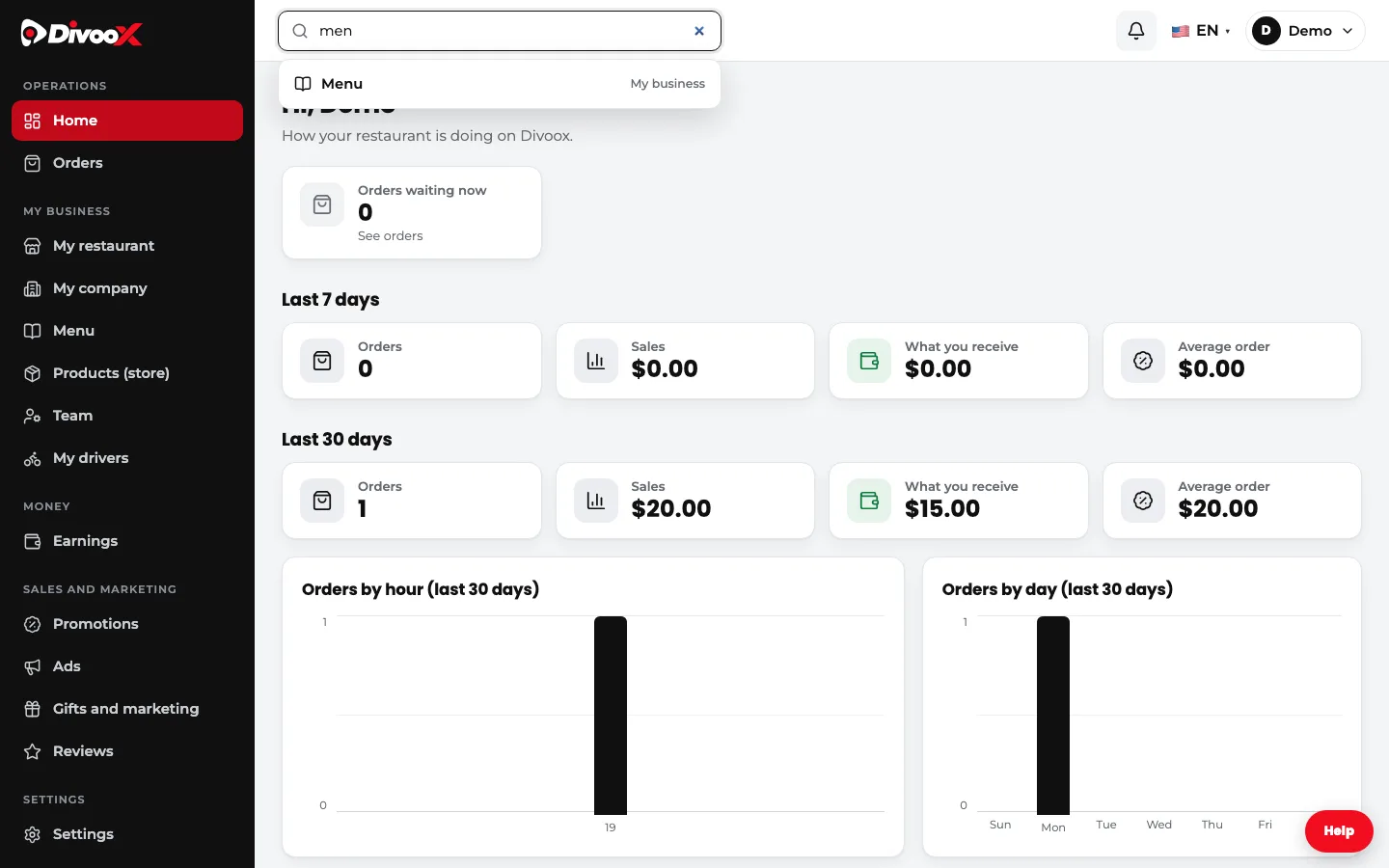
At the top there’s a search box: type a few letters (“men”, “promo”, “rev”) and it takes you straight to that section, without going through the menu.
The bell tells you how many orders are waiting for you to accept them. If nothing is pending, it says so. Next to it are the language and your name: that’s where you find “Settings” and “Sign out”. Sign out is also at the bottom of the menu.
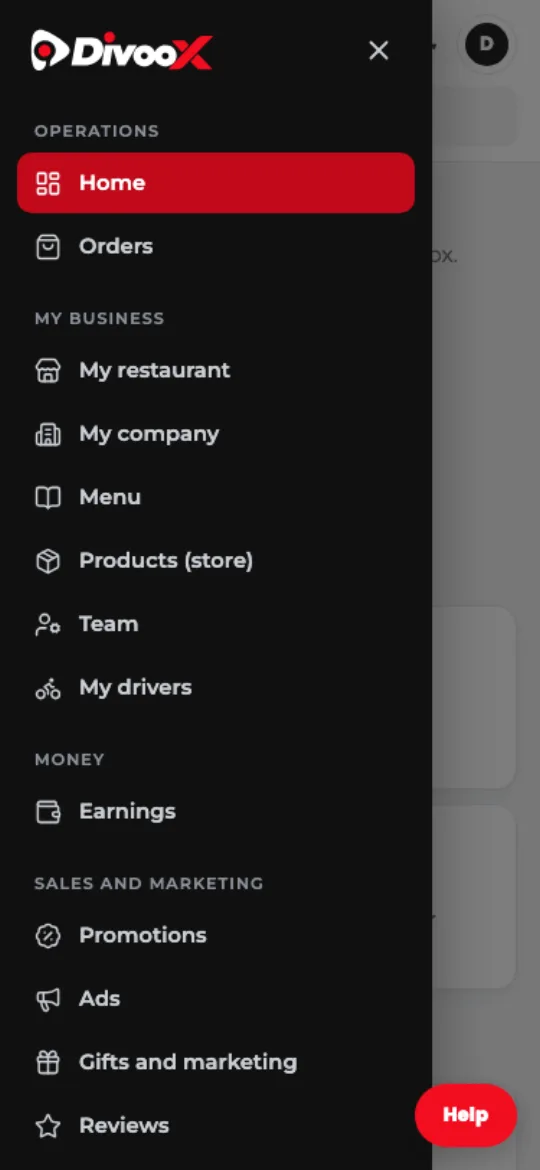
On a phone the menu tucks away to leave the screen to your information: tap the three-line button at the top left and it opens on top. It closes by itself when you pick a section.
Steps
- Open your dashboard on a computer or in your phone’s browser.
- Pick a section in the menu on the left. On a phone, tap the three-line button first.
- If you don’t see it, type its name in the search box at the top and tap it.
- Check the bell: if it shows a number, orders are waiting. Tap it to go to them.
- To leave, tap your name and then “Sign out”, or use “Sign out” at the bottom of the menu.
This guide answers
- How do I find a section of the dashboard?
- How do I sign out of the dashboard?