
Map colors: day and night
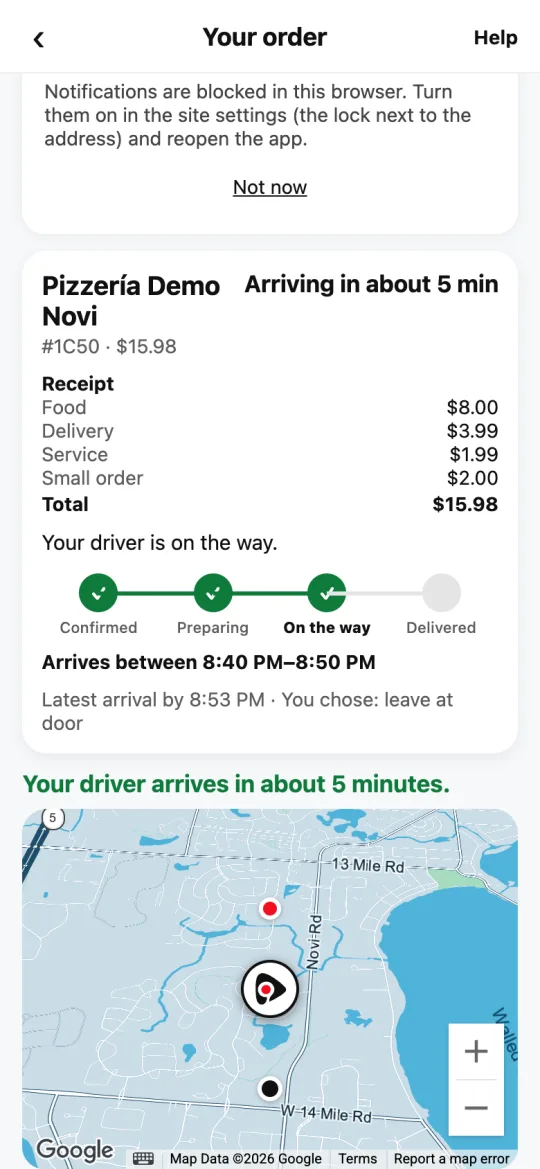
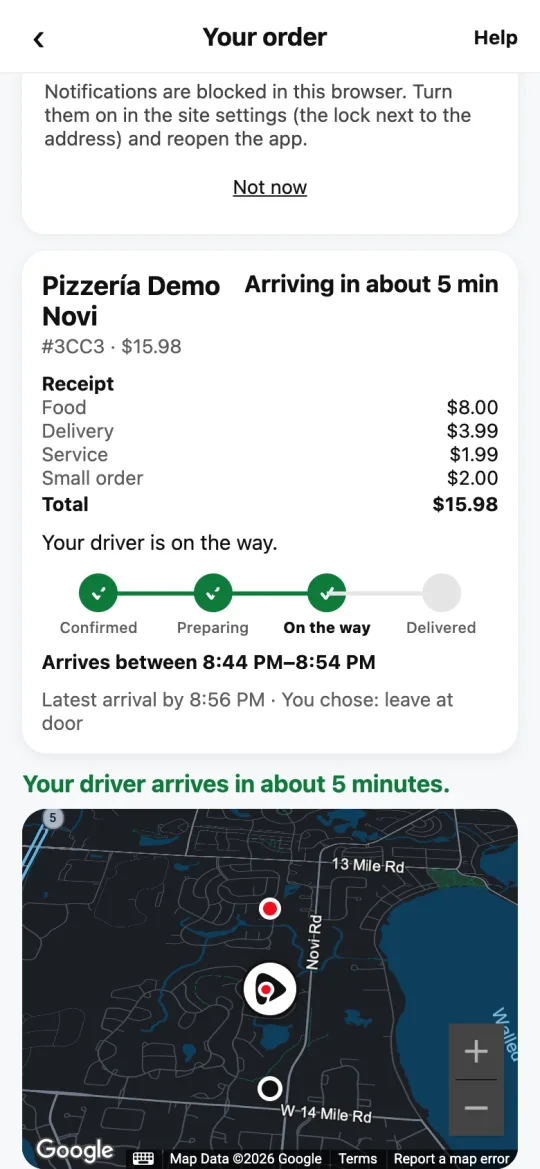
The Divoox map switches on its own: blue by day, dark at night. If you’d rather keep one, choose it in your account.
How it works
Every Divoox map (tracking your order or your ride, the map where you set your address, the pickup locations map, and the ones in Divoox Driver) has two styles. By day it uses blue tones with crisp white streets. At night it turns dark, with main roads in light blue, so the screen is easy on your eyes.
The switch is automatic: the map knows when the sun sets and rises in the place you’re looking at. It also turns dark if your phone or computer is in dark mode.
Your driver always shows up as the Divoox symbol, which stands out just as well on the day map and on the night map. Your home and the restaurant keep their usual pins.
Steps
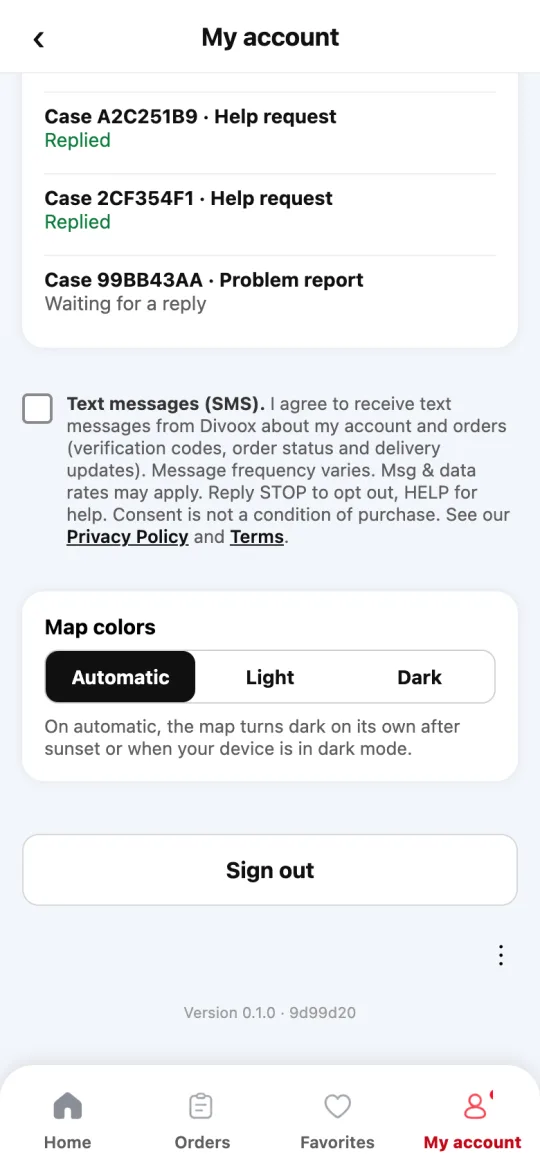
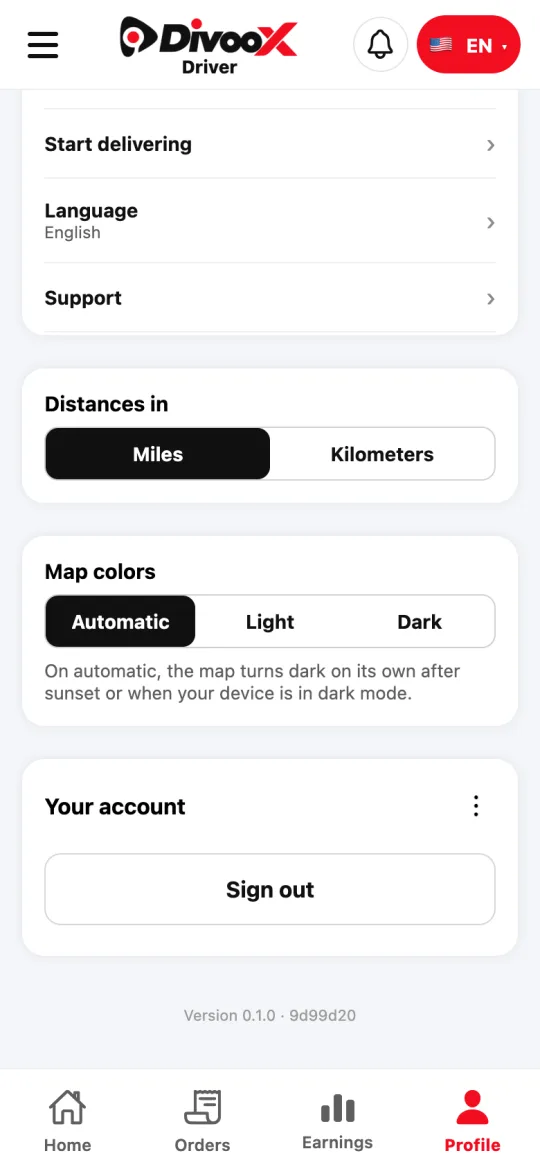
- Open your account: in the Divoox app, the “My account” tab; in Divoox Driver, the “Profile” tab.
- Find the “Map colors” card.
- Tap “Automatic” to let it switch by time of day, “Light” to keep it on day, or “Dark” to keep it on night.
- Done: every map changes right away, and your choice is saved on that phone or browser.
- On iPhone, the app uses Apple’s map: it switches between light and dark the same way, in Apple’s own colors.
This guide answers
- Why did the map turn dark?
- How do I keep the map always light?
- How do I turn on night mode for the map?