
Add stops to your ride
Add stops before you request or once the ride is underway. You always see the new price before you confirm.
How it works
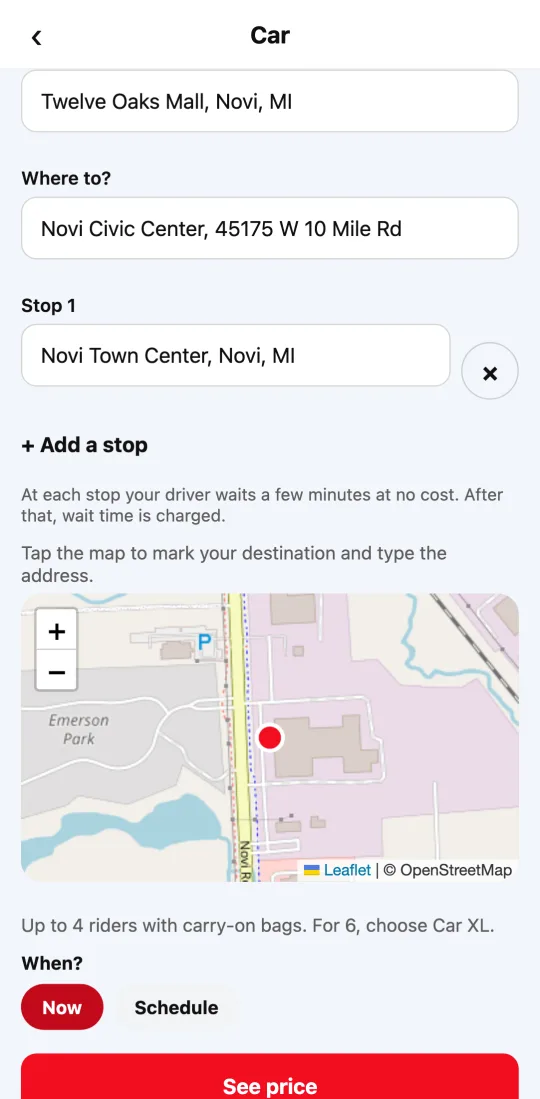
A ride can have stops along the way: picking someone up, dropping something off, or running into a store. You add them before you see the price, below the destination, with “Add a stop.” How many you can add depends on your city; the app tells you.
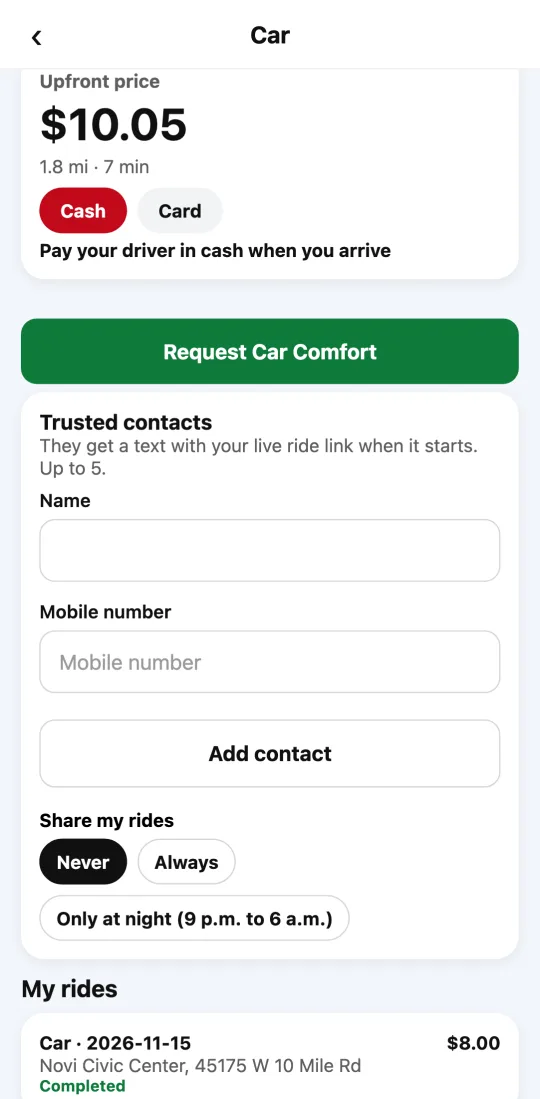
The fixed price you see already includes the whole trip with its stops.
At each stop your driver waits a few minutes at no cost. If you take longer, wait time is charged per minute, the same as at pickup.
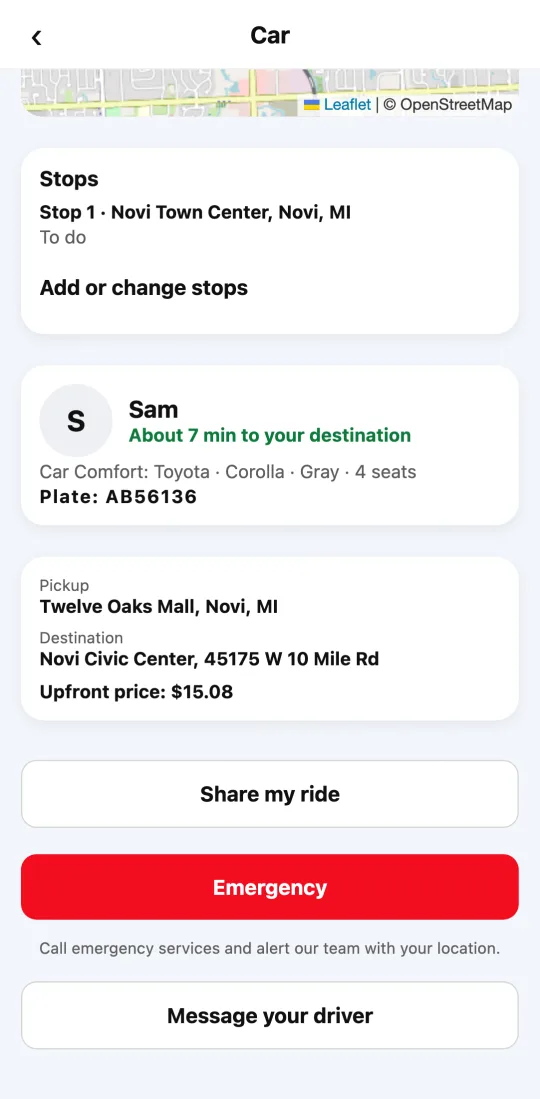
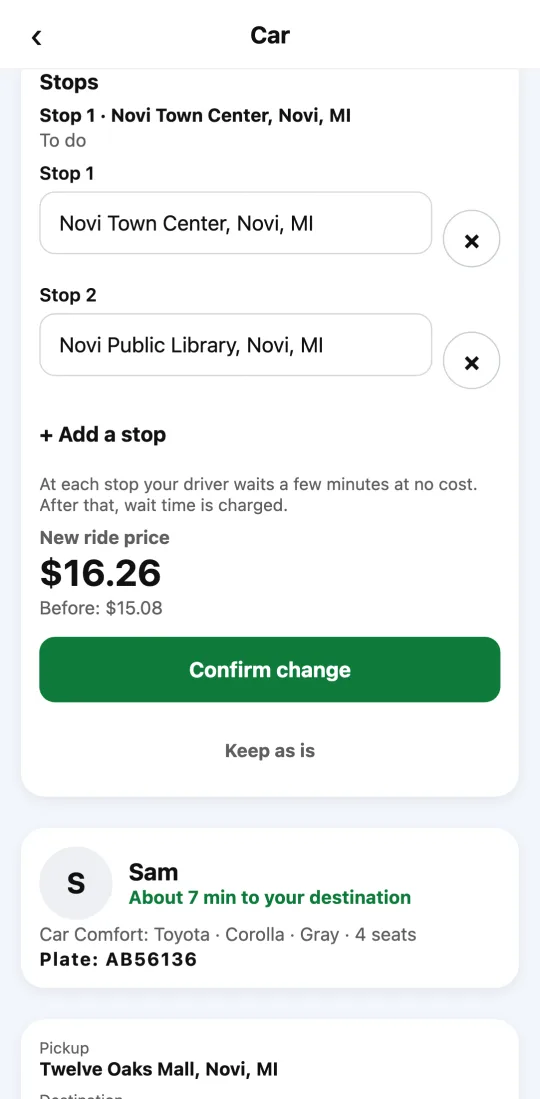
Once the ride is requested you can also add, change, or remove the stops that are left, from the ride’s “Stops” card. First tap “See new price”: the app shows the new ride total and what it was before. It only changes when you tap “Confirm change,” and your driver sees the new route right away.
If you pay by card, the price can’t go up after you request: add your stops before requesting the ride.
Steps
- On the ride screen, enter your destination and tap “Add a stop.”
- Type the stop’s address and pick it from the suggestions.
- Tap “See price”: the fixed price already includes the stop. Request your ride.
- With the ride requested, on the “Stops” card tap “Add a stop” or “Add or change stops.”
- Tap “See new price,” review it, and tap “Confirm change.”
To remove a stop, tap the X next to it and confirm the new price.
This guide answers
- Can I add a stop to my ride?
- How much does adding a stop cost?
- Can I add a stop once the ride has started?
- How long does the driver wait at a stop?